 CuraCourse
Before you start
Some lessons are group work: everyone in a group works on the lesson together and shares one score. Your instructor decides whether you pick your own group or they assign you to one. This article is for when you get to pick.
Choose your group
- Open the group lesson from your course.
- If you aren't in a group yet, you'll see a Group Work page instead of the lesson. It lists each group you can join, how many learners are in it, and who has already joined.
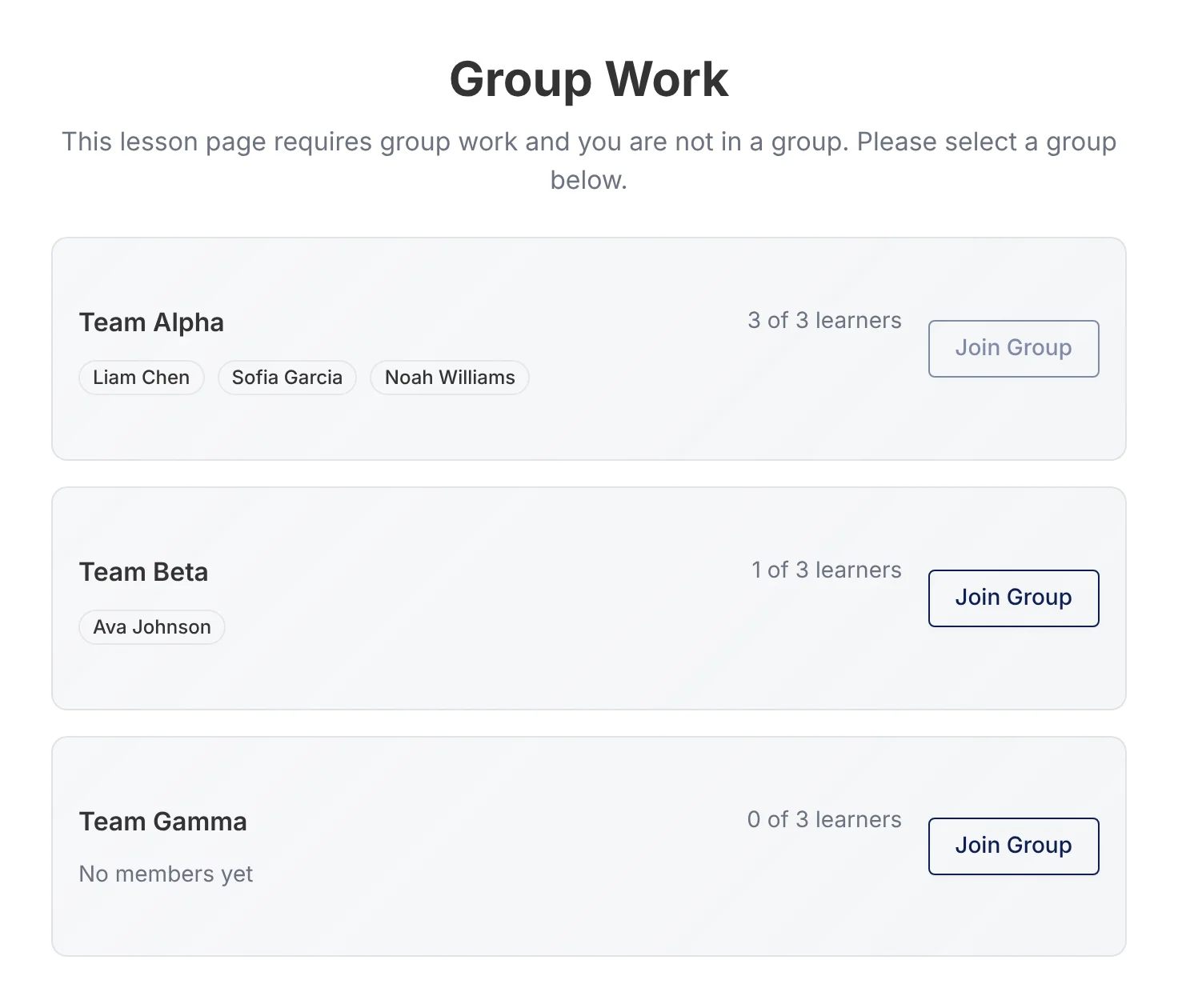
- Choose Join Group next to the group you want.
- You'll see Successfully joined group! and the lesson opens. If it doesn't open, refresh the page.
You can join only one group, so check the names before you choose.
If a group is full
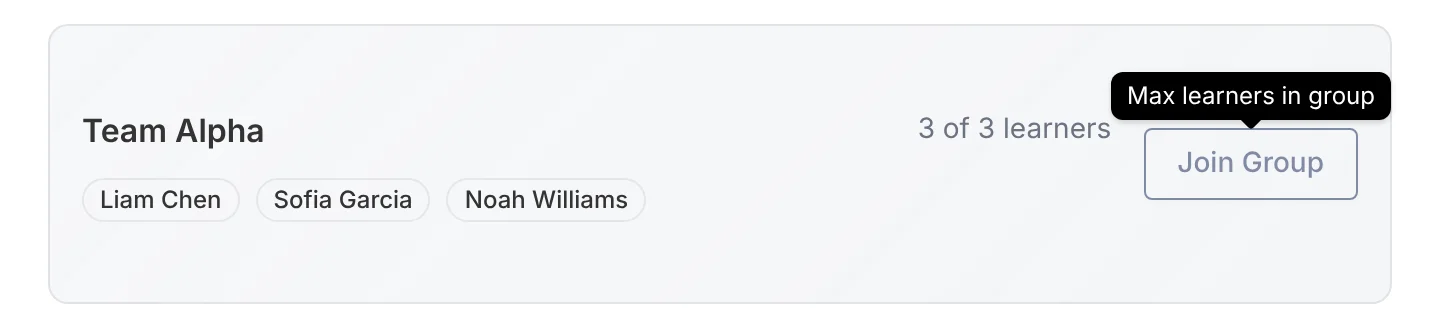
Your instructor can set a limit on each group, shown as 3 of 3 learners. When a group is full, its Join Group button is grayed out, and pointing at it shows Max learners in group. Pick a group that still has room.
See which group you're in
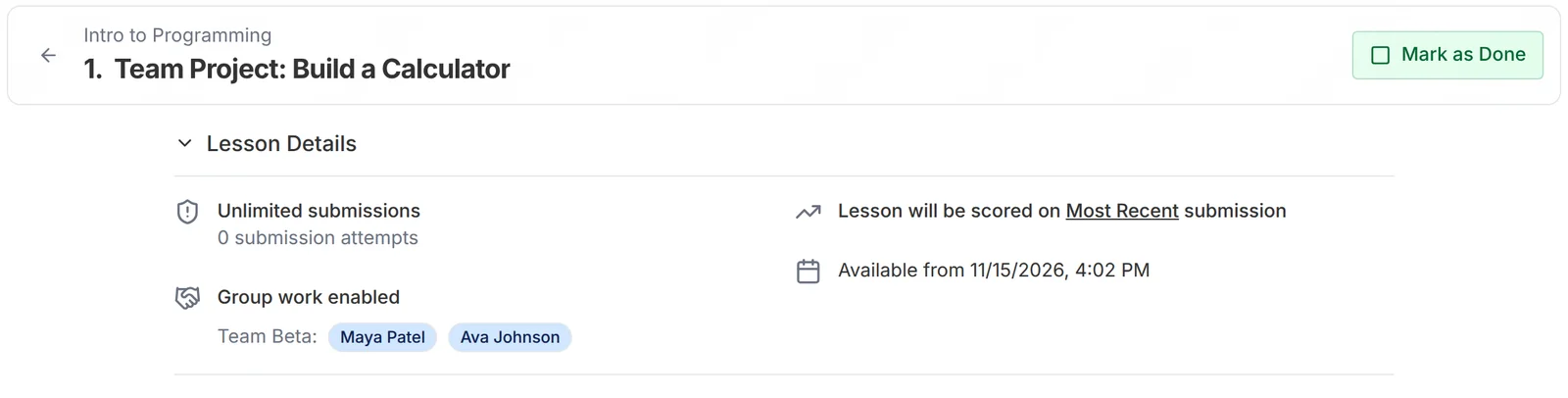
Open Lesson Details at the top of the lesson. Under Group work enabled, you'll see your group's name and everyone in it.
Instructors often use the same groups for several lessons. If another lesson uses these groups, you're already in yours and the lesson opens right away.
Switch groups
You can't leave a group or switch to another one yourself. Ask your instructor to move you.
If something looks wrong
- The Join Group buttons are all grayed out: your instructor assigns groups for this lesson. Pointing at a button shows Self-selection is disabled. Your instructor will assign you to a group. Ask your instructor to add you.
- You see "No groups available": your instructor hasn't made any groups you can join yet. Let them know.
- A group you expected isn't listed: if your class uses cohorts (for example, class periods), you'll only see groups for your cohort.
- Every group is full: ask your instructor to add a group or raise the limit.
For instructors
To let learners pick:
-
In Course settings, open Assignment groups.
-
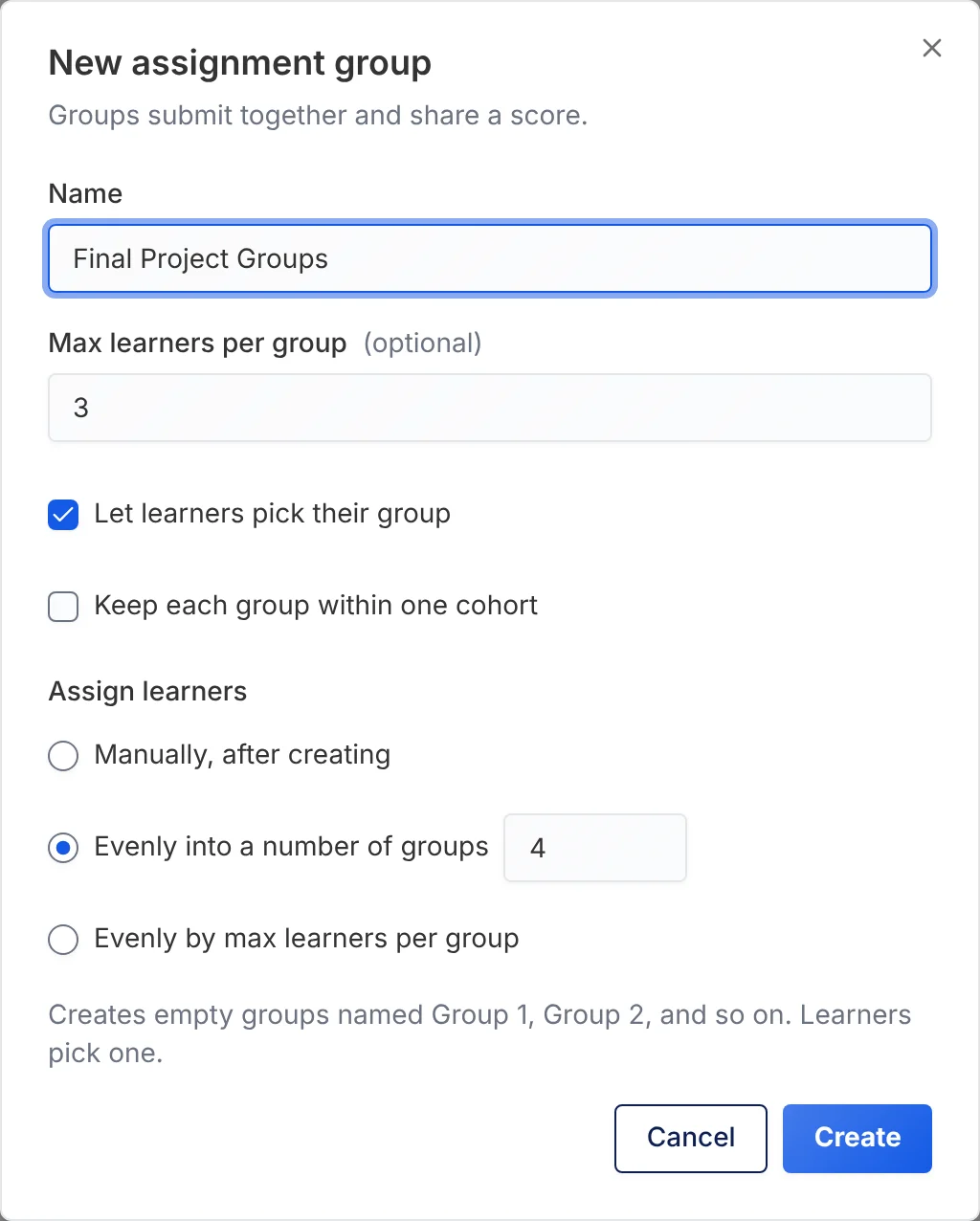
Choose New assignment group and check Let learners pick their group. To cap group size, fill in Max learners per group.
-
Under Assign learners, choose Evenly into a number of groups and enter how many groups you want, or choose Evenly by max learners per group. When you choose Create, CuraCourse creates empty groups named Group 1, Group 2, and so on.
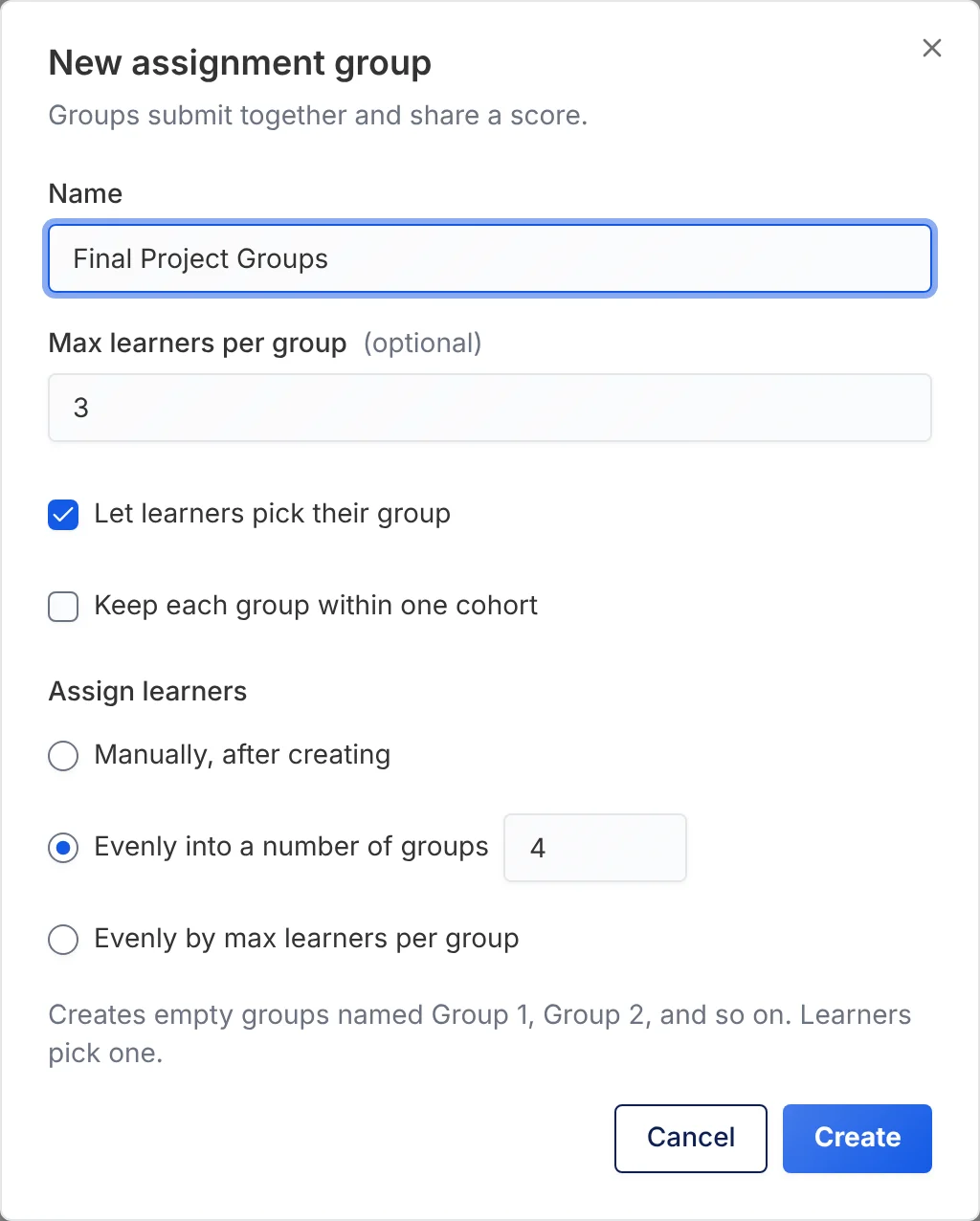
Learners can only join groups that exist. If you choose Manually, after creating, open the assignment group afterward and add each group with New Group.
-
In the lesson, open Page Settings, turn on Group Work, and select the assignment group.
See assignment groups and Page Settings for group work for more.