 CuraCourse
Before you delete
Deleting a course removes it for everyone:
- Learners, assistants, and instructors lose access right away.
- The course disappears from everyone's dashboard.
- Learners' submissions, grades, and progress in the course are no longer available.
- Join codes stop working, and LMS links to the course stop opening.
If you're done teaching the course but want to reuse it, duplicate it for next term first. Record or sync any grades you still need before you delete.
Who can delete
Only instructors in the course can delete it. Assistants and learners can't.
Delete a course
- Open the course and choose Settings.
- In the sidebar, under Course, choose Duplicate & delete.
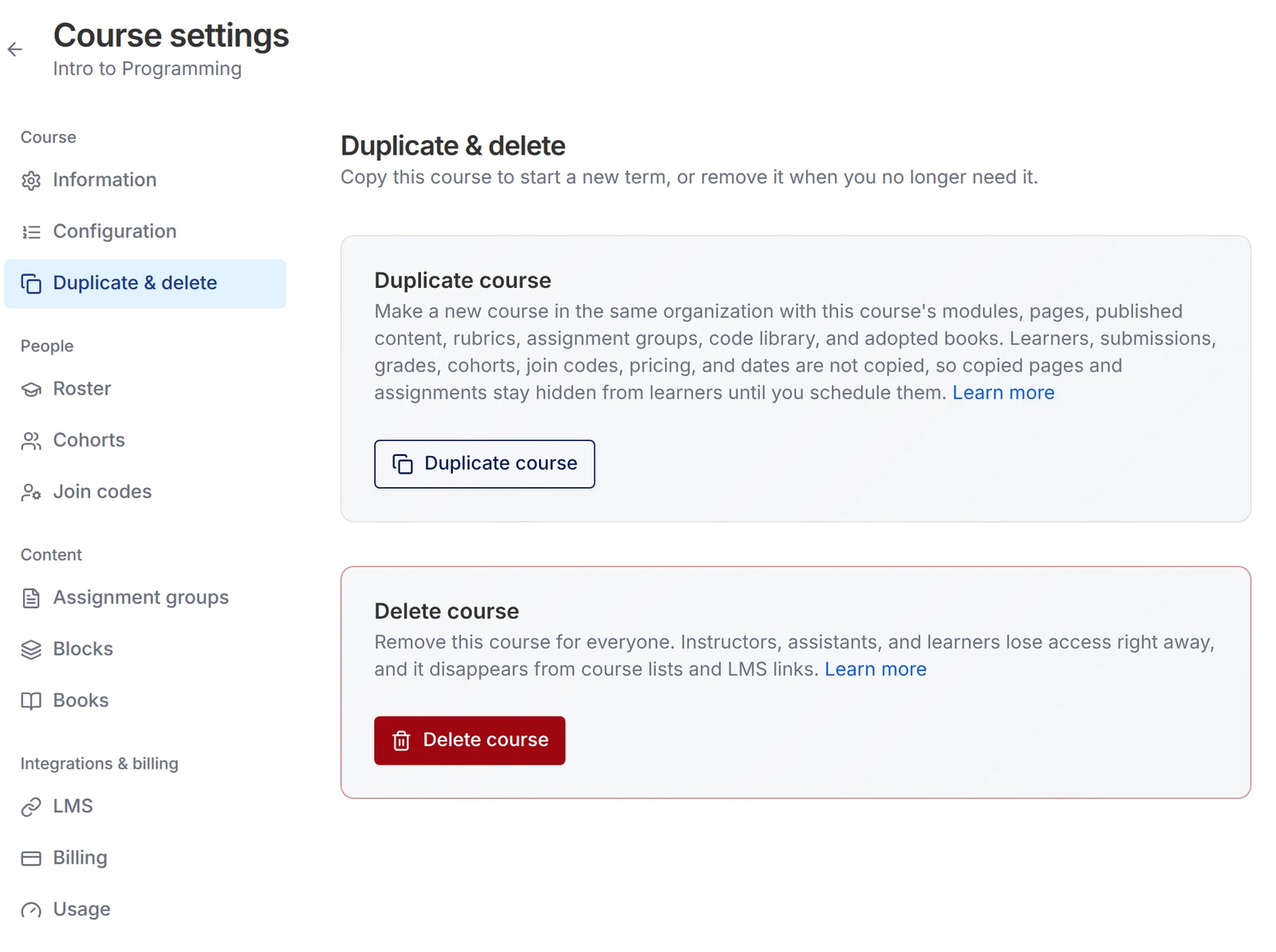
- Under Delete course, choose Delete course.
- Read the confirmation. It shows how many learners are on the roster.
- Type the course title exactly as shown, then choose Delete course.
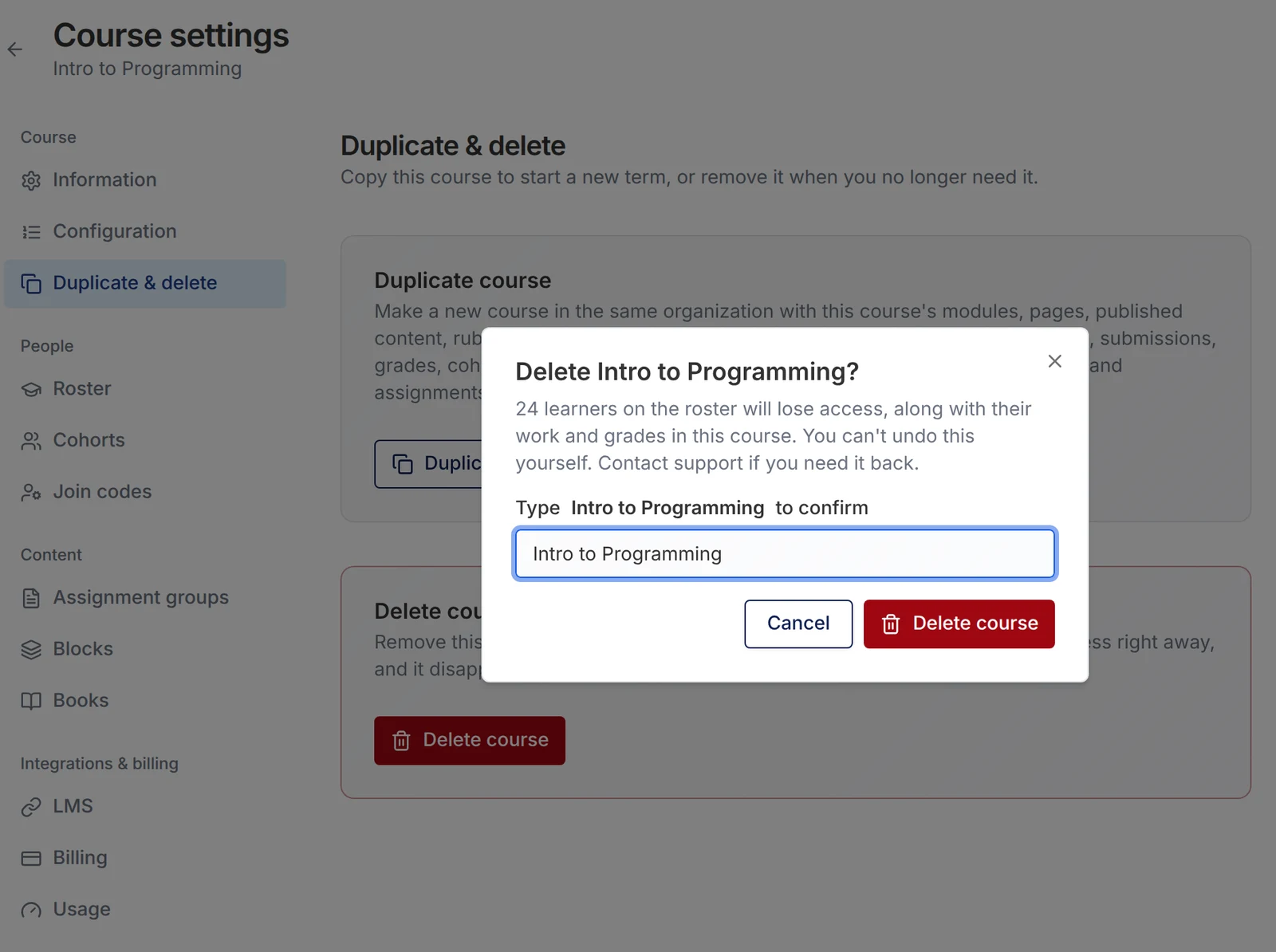
CuraCourse takes you back to your dashboard.
Get a deleted course back
You can't restore a deleted course yourself. If you deleted one by mistake, contact support with the course title and roughly when you deleted it. Support can usually restore it with its content, roster, and student work.