 CuraCourse
At a glance
An assignment is a bundle of existing course pages — not a new kind of lesson. You pick the pages, who should see it, and (optionally) a due date. Learners open Assignments in the course header to see that work and their scores. Creating an assignment does not publish the pages. Access Policy still controls whether a lesson is visible, locked, or showing grades. This is different from Assignment groups, which split learners into teams for group work.
Prerequisites
- Instructor or assistant on the course. Assistants can create and edit; only instructors can Release all grades.
- At least one lesson page in the Table of Contents. Modules cannot be added to an assignment.
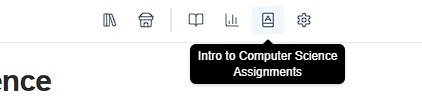
- Course header → Assignments.
Steps
Create an assignment
-
Open the course and click Assignments.
-
Click Create Assignment.
-
Enter a Title (required) and optional Description.
-
Optionally set a Due date. Check Ignore submissions after due date if late work should not count toward this assignment. Learners can still submit on the lesson itself.

-
Set Show on Assignments page. This only lists the assignment; it does not publish the lessons. It defaults to now. Clear it, or pick a future date, to keep the assignment hidden from learners.

-
Choose Audience: All learners, Selected cohorts, or Selected learners.
-
Under Lessons, check the pages to include. Each row shows Hidden / Scheduled / Visible (from the All Learners publish time) and the point value. You must select at least one page. If the assignment is already listed for learners and some selected pages are still hidden in the course, a warning appears.
-
Click Save. You land on the assignment roster.


Track scores and manage the assignment
- From Assignments, open an assignment.
- The roster shows each learner in the audience, a total, a percent, and a column per page. Missing work shows as – (not zero). Totals include only pages that learner can currently access.
- Click Export CSV to download the roster (name, email, totals, and per-lesson scores).
- Click Edit to change the title, due date, audience, or included pages.
- Click Release all grades (instructors only) to set Show grades at to now on Access Policy for every lesson in the assignment. Learners see those scores immediately. This cannot be undone from the assignment page (you would need to modify from TOC or lesson page).
- Click Delete to hide the assignment from everyone. This cannot be undone. It does not delete lessons or submissions.
How learners see assignments
- Learners only see an assignment if Show on Assignments page is set and that time has passed, and they are in the audience. Otherwise the assignment does not show for them — it looks like it does not exist.
- On the list they see the due date, a running total (from released grades), and an Overdue badge if the due date has passed and they still have unfinished graded pages.
- On the assignment page they can open each accessible lesson. Scores you have not released say Hidden by instructor. The total may note that it is based on only some of the pages.
- Pages they cannot access yet do not appear. An assignment is complete when every accessible graded page (more than 0 points) has a score or a completed submission.
- If Ignore submissions after due date is on, only on-time work counts toward that.
Common gotchas
- Assignments are not Assignment groups. Groups live under Course Settings → Assignment Groups and are for team submissions on a lesson.
- Listing an assignment does not make hidden lessons visible. Publish each page with Access Policy.
- A due date does not lock the lesson or stop submissions. Use Access Policy locks or Score Policy late penalties for that. Ignore submissions after due date only changes what counts toward the assignment total.
- Unreleased grades still appear on the instructor roster. Learners only see released scores.
- Zero-point pages do not count toward “complete,” and they add 0 to the max.
- Duplicating a course copies assignments and resets the audience to All learners.
- Assistants can manage assignments but cannot Release all grades.