 CuraCourse
At a glance
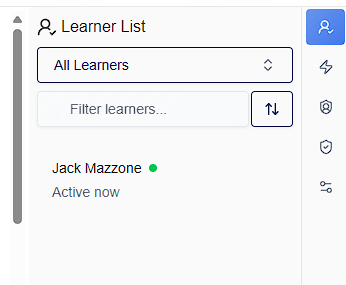
Learner List lets you select a student and see their live work—the same collaborative document they’re editing—not a graded submission snapshot.
Prerequisites
- Lesson or course view as instructor → Learner List panel.
Steps
- Open Learner List from the right sidebar.
- Filter by audience (all learners, cohort, instructional staff, dropped), search, and sort as needed.
- Click a learner. The banner shows Viewing [Name]'s live work.
- Walk through the lesson as they would (gates, passwords, locks apply unless you bypass).
- Use Bypass access restrictions when you need staff preview past learner gates.
- Click Exit on the banner to leave view-as mode.
Common gotchas
- Do not use Learner List to enter scores—use Lightning Grader for submitted snapshots and rubrics.
- Switching to Lightning Grader while a learner is selected loads submitted work instead of live edits.