 CuraCourse
At a glance
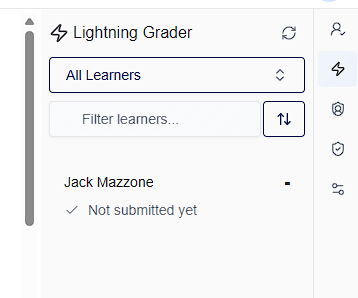
Lightning Grader is the lesson workspace for scanning submission status and grading rubrics, feedback, and score history without leaving the page.
Prerequisites
- Lesson view mode (not course dashboard).
- Learners with submissions on this lesson (for meaningful scores).
Steps
-
Open Lightning Grader on the right sidebar.
-
In the roster, use shared filters (cohort, search, sort). Click Refresh after a live grading session.
-
Activity shows whether a learner was recently active on this lesson and a last-active time (based on their live lesson document, not time in the grader).
-
Select a learner to open grading detail:
- Rubric items (autograded and manual)
- Score modifiers, final score
- General feedback and private grading notes
- Score history — switch attempts; Selected vs Viewing labels
- Previous / Next for adjacent learners in the sorted list
-
The main lesson area shows the submitted snapshot for the attempt you’re grading.
The back arrow in grading detail returns to the roster list inside Lightning Grader without exiting view-as.
Common gotchas
- Green/gray activity dots update when you refresh or reopen the tab—not continuously in the background.
- First open loads the score-policy selected submission; history lets you grade a different attempt explicitly.