 CuraCourse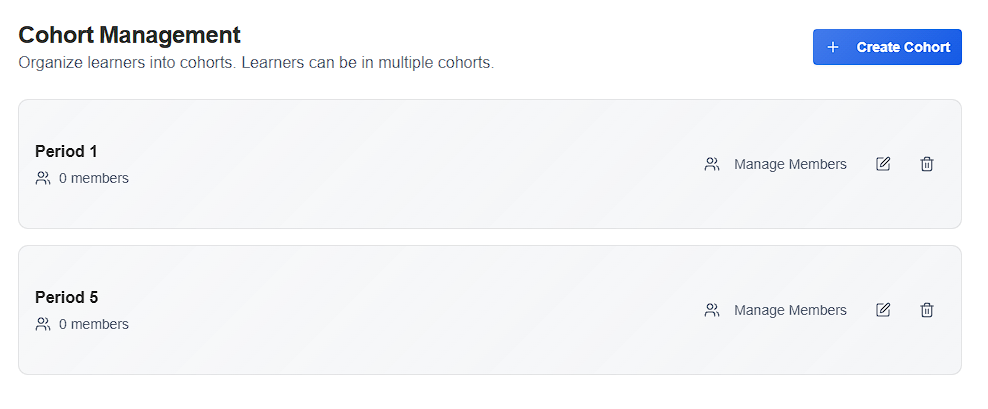
At a glance
Cohorts are instructor-managed groups of enrolled learners. Use them to filter the gradebook and Lightning Grader, target Access and Score policies, and limit assignment audiences. Learners can belong to more than one cohort. Creating a cohort does not add anyone — you add members separately.
Cohorts are typically used to organize your class period or sections of students.
Join codes enroll people into the course. They do not assign a cohort.
Prerequisites
- You are an instructor on the course (assistants can view and filter by cohort but cannot create or edit cohorts).
- Learners you want to add are already enrolled on the Course Roster.
Create a cohort
- Open the course and go to Settings (gear on the course dashboard, or {Course title} / Settings in the header).
- In the sidebar, open Cohort Management.
- Click Create Cohort.
- Enter a Cohort Name (required). You can add an optional Description.
- Click Create Cohort.
The new cohort starts with 0 members. Names do not have to be unique — you can have as many cohorts as you need.
Add or remove members
- On Cohort Management, click Manage Members for that cohort.
- Search by name or email if the roster is long.
- Check a learner to add them, or uncheck to remove them. Learners already in this cohort show an In cohort badge. Other memberships appear under Also in:.
- Click Done when you are finished.
Only enrolled learners appear in this list. There is no CSV import and no automatic assignment from a join code.
Edit or delete a cohort
- Edit (pencil): change the name or description.
- Delete (trash): permanently removes the cohort and all of its memberships. Learners stay enrolled in the course.
If you drop a learner from the Course Roster, they are removed from every cohort. Re-enrolling them does not restore those memberships — add them again with Manage Members.
Where cohorts are used
| Surface | How cohorts apply |
|---|---|
| Gradebook, Lightning Grader, and Learner List | Filter the roster to one cohort |
| Access Policy and Score Policy | Target Policy will affect → Cohort (visibility, locks, grade release, scoring rules) |
| Assignments | Audience → Selected cohorts (a learner is included if they are in any selected cohort) |
| Assignment Groups | Optional Require group members to be in the same cohort |
If a learner is in multiple cohorts and more than one cohort policy applies, the cohort policy with the lowest sort order wins. User- and group-targeted policies still take precedence over cohort policies.