 CuraCourse
At a glance
Interactive Activity Blocks are scored lesson activities. Students participate or complete them, usually for points. Insert them from / → Interactive Activity Blocks.
Each activity has a header (type label, optional lesson number) and a Points value. Rubrics and model solutions stay in Edit; students never see them. See Rubrics & scoring modes and Add rubric items.
Instant Feedback is in the same slash group, but it is not a scored activity. It lets students Check Answer on a bound activity without submitting the lesson.
Prerequisites
- Lesson Edit mode. See What are CuraCourse blocks?
How to insert
- Type
/and choose an item under Interactive Activity Blocks. - Set Points on the block header.
- Mark answers, add choices/items, or attach a rubric as needed.
- Duplicate or delete from the block
⋯menu.
Set Points to 0 for ungraded practice. It is still an activity, not a content block.
Quiz and selection
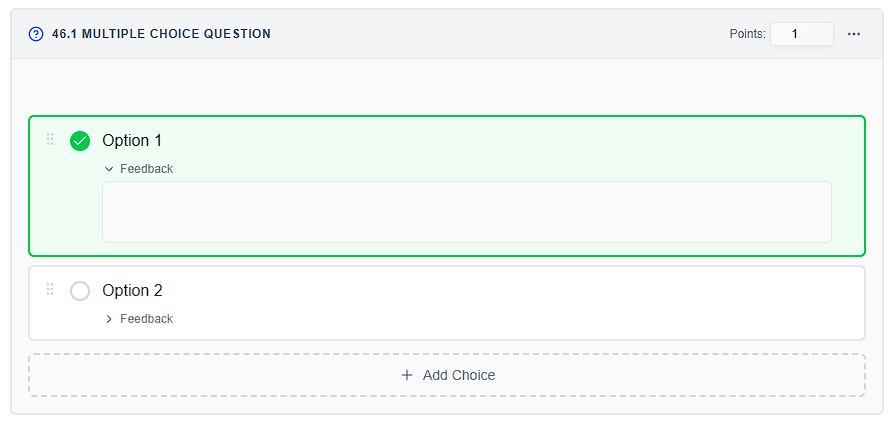
Multiple Choice Question
Students pick one option.
- Points; automated check (All or Nothing or Manual Grading).
- Mark the correct choice; optional per-option feedback.
- Shuffle Options; Add Choice.
Multiple Select Question
Students select all that apply. Same scoring pattern as multiple choice.
Fill in the Blank Question
Students fill blanks in the prompt. Blank types: Text, Number, Math, Dropdown.
- Autograde against accepted answers.
- Text: ignore case/whitespace; optional single-letter mistake.
- Number/math: numeric tolerance.
- Math compare: Exact form, Equivalent, Numeric, or Simplified; optional math keyboard layouts.
Clickable Activity
Students click the correct words, lines, or table cells.
- Type: Text, Code, or Table.
- Unit: Words or Lines / Sentences.
- Mark correct items and exclude non-clickable ones. Autogrades the correct set.
Drag, order, and construct
Categorize Activity
Students drag items into categories. Items are shuffled for students. Score matches each item to its correct category.
Ordering Activity
Students put items in the correct order (optional distractors stay in a bank).
- Vertical or Horizontal.
- Vertical can Enable indentation (max indent; optional stacked student zones).
- Score compares order (and indent, if enabled) to your solution.
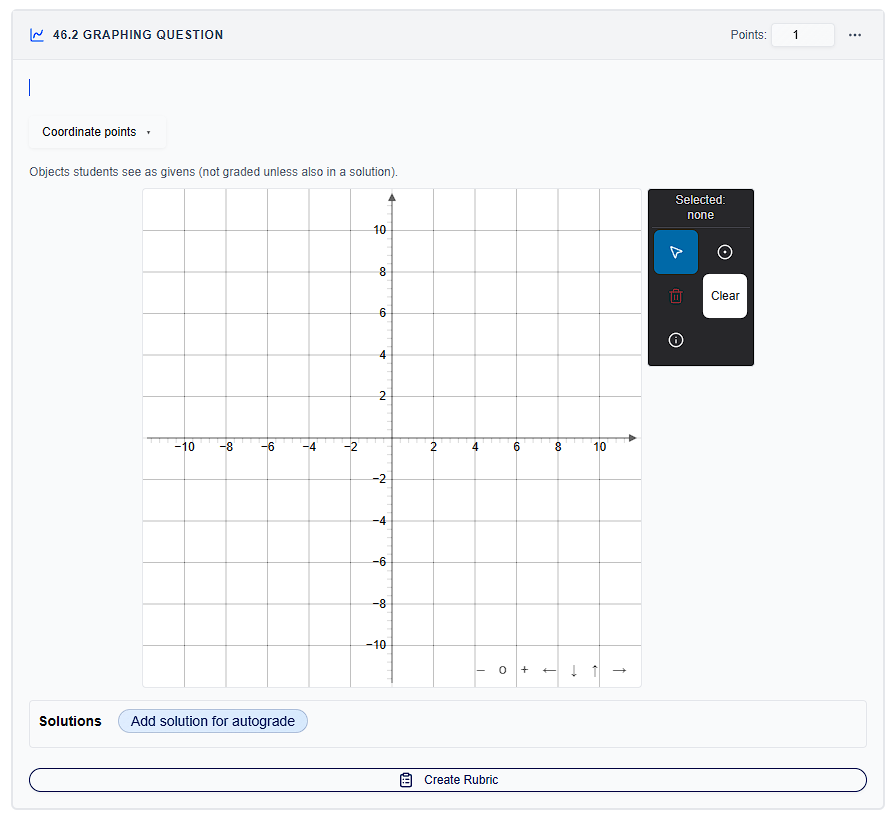
Graphing Question
Students construct points, lines, or shapes on a board. Autograded against your solution alternatives (tolerance, ignore extra objects), with an optional manual score.
Modes include number line, coordinate points, lines and segments, circles, curves, full construction, geometry, trig unit circle, and graph functions.
This is not Interactive Graph (an unscored demo). See Content blocks.
Written, upload, and conversation
Open Response Question
Students write a free-form answer. Score with a rubric: Manual Score, AI Grading, or Webhook Grading.
Essay settings include placeholder, Disable Paste, and word count.
File Upload Activity
Students upload files (multi-file, size limits). Score with an authored rubric (typically manual or AI).
AI Chat Activity
Students complete a guided conversation (optional attachments).
- Mode: AI-powered, Simulated, or Hybrid.
- Participation points after a minimum number of student messages; optional keyword / follow-up / format objectives; optional rubric.
- System prompt, simulated pairs, message limit, attachments, and guardrails (safety / topic / blocked phrases) are author-only.
Code
Code Editor
Students edit and run code in a cloud sandbox. Score with Code Grading, Manual Score, and/or AI Grading, plus optional model solutions.
Settings include environment, vertical layout, Disable Paste, read-only or hidden files, lock file tree, and output layout (Result / Preview / Terminal).
Shared course library files: Course blocks: code editor library.
Code Tracing Activity
Students read read-only code and predict program output and variable values. Autogrades against expected output and vars (ignore case / whitespace).
This is not Python Tutor Embed (content).
Instant Feedback
Instant Feedback lives in the Interactive Activity Blocks menu, but it has no points and is not numbered. It does not submit the lesson and does not add to the gradebook.
Use it so students can Check Answer on a bound activity while they work.
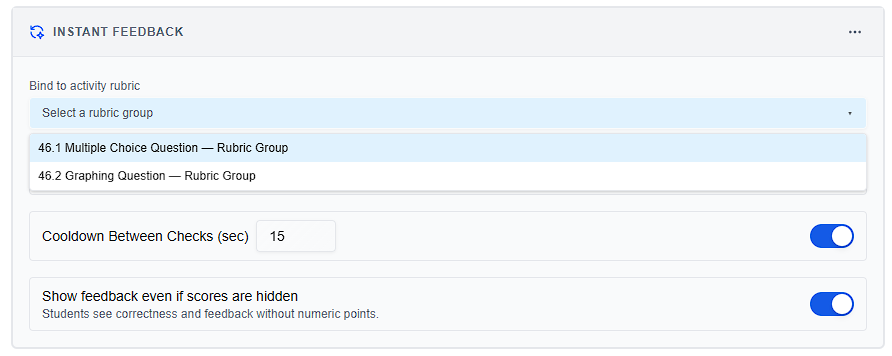
Bind an activity
- Insert the activity students should practice (and add an autogradable path — built-in checks, or Code Grading / AI Grading / webhook rubric items).
- Insert Instant Feedback nearby.
- Set Bind to activity rubric to that activity’s autogradable rubric group.
A rubric group can be bound to only one Instant Feedback block (the picker marks others as claimed). Manual-only groups do not appear. If you delete the bound activity or group, the block shows No longer connected.
Built-in checks (no extra rubric required) cover Multiple Choice, Multiple Select, Fill in the Blank, Categorize, Ordering, Clickable, Code Tracing, AI Chat, and Graphing Question. Open Response, File Upload, and Code Editor need an autogradable rubric item first.
Settings
- Limit Number of Checks — cap how many times a student can check.
- Cooldown Between Checks (sec) — wait between checks. If you turn cooldown off, a short minimum wait still applies to prevent abuse.
- Show feedback even if scores are hidden — students see correctness and feedback without numeric points.
Students click Check Answer on the bound activity. That is formative only. Lesson submission and Lightning Grader are separate.
Common gotchas
- Code Block (content) vs Code Editor (scored sandbox).
- Interactive Graph (content) vs Graphing Question (scored).
- Python Tutor Embed (content) vs Code Tracing Activity (scored predict-the-output).
- Instant Feedback is not a submission and awards no points of its own.
- Points = 0 is still an activity (practice).
- Rubrics and model solutions are author-only; students never see them.