 CuraCourse
At a glance
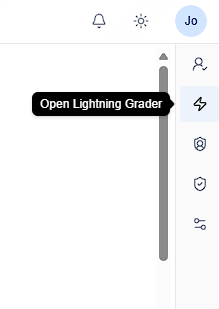
On a lesson page, instructors use the right sidebar for roster preview, grading, policies, and settings. In edit mode, the same rail includes Changes for tracked edits.
Prerequisites
- Open a lesson from the course table of contents as an instructor or assistant.
Steps
- Open the lesson (view mode). On the right edge, open a panel by its icon:
| Tab | Available on | Purpose |
|---|---|---|
| Learner List | Course dashboard & lesson view | Pick a learner; preview live work |
| Lightning Grader | Lesson view only | Grade submitted work |
| Access Policy | Lesson view | Visibility, locks, grade release timing |
| Score Policy | Lesson view | Which submission counts, limits, strategies |
| Lesson Settings | Lesson view & edit | Group work, Student AI Chat |
| Changes | Lesson edit only | Review tracked edits and pending block reviews |
- Click the same icon again to close the panel.
- Use Edit on the lesson header to change content; return to view when done.
Switching between Learner List and Lightning Grader while viewing a learner updates the main area between live and submitted snapshots.
Common gotchas
- Lightning Grader does not appear on the course dashboard—only on lesson pages.
- Changes appears only in edit mode when there are suggestions or pending interactive reviews.