CuraCourse
At a glance
A book is reusable course material authored by an organization. Nobody enrolls in a book and it has no roster or grades. To teach from one, you adopt it into a course, and learners only ever see the pages inside your course.
Adopted pages stay linked to the book, so learners see the author's latest published version. When you want to change a page, you make your own copy of it.
Prerequisites
Instructor account on CuraCourse
Bookstore in the header. It lists public books plus books from any organization you belong to private library.
Steps
-
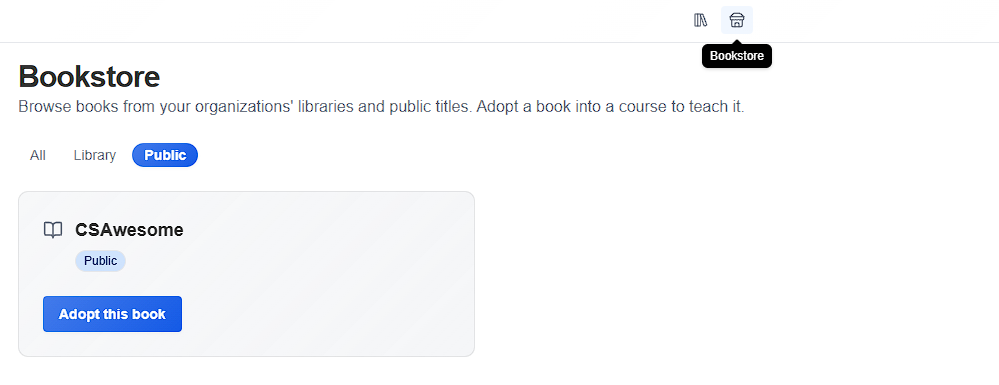
Open Bookstore from the header and find the book you want. You can preview a book's published pages before adopting.
-
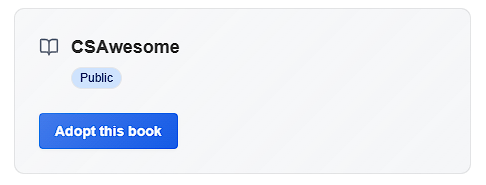
Adopt the book into your course. Its published modules and pages appear in your Table of Contents.
-
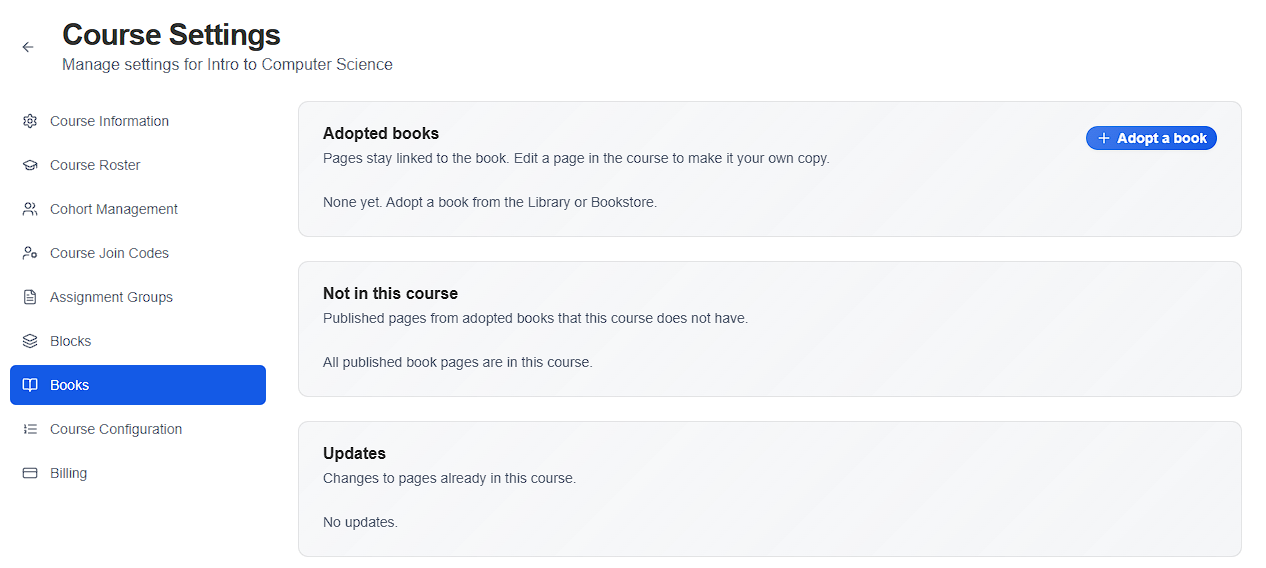
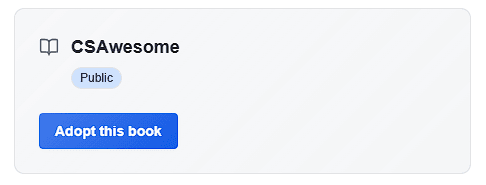
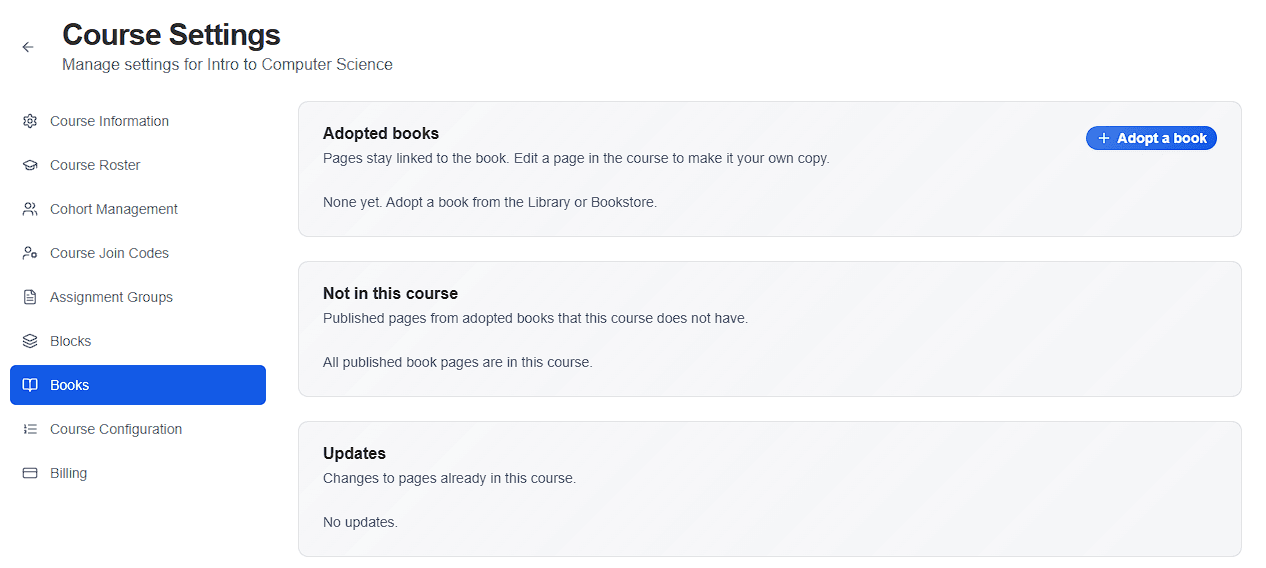
“Adopt this book“ option will create a new course with the book. If you want to add a book to an existing course, go to that course’s settings page, navigate to the “Books“ tab, and select “Adopt a book“
-
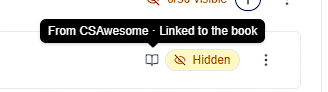
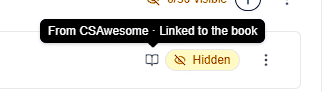
After adopting a book, open the course Table of Contents to see what came in. A muted book icon marks a linked page. These icons are visible to instructors and TAs only, never to learners.
-
Teach as normal. Learners see the book's latest published content, and submissions autograde against that same published version, including rubrics authored on the book.
-
To change a page, open the lesson and click Edit, then choose “Make my own copy” in the banner. The course stores a snapshot you can edit and like any other lesson you created on your own. The Table of Contents switches that page to a fork icon (Your copy).

-
You can always compare your changes against the latest version of the book’s lesson by selecting “Compare with book“

-
To go back to the book author’s content, choose “Use the book version”. The course copy is dropped and the page follows the book again.
-
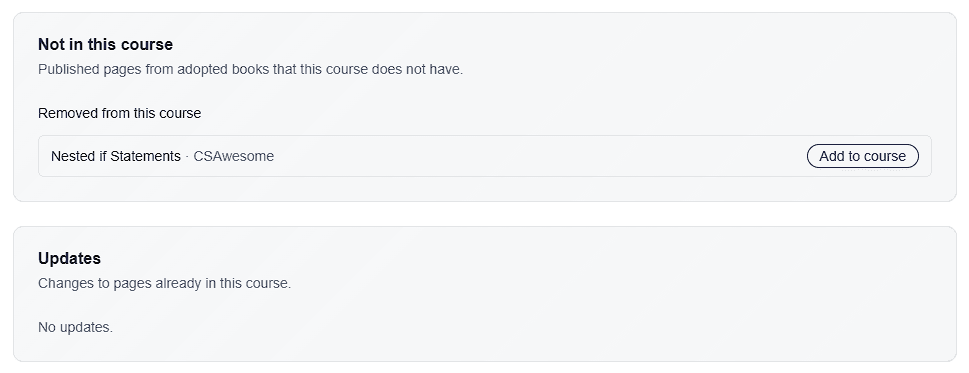
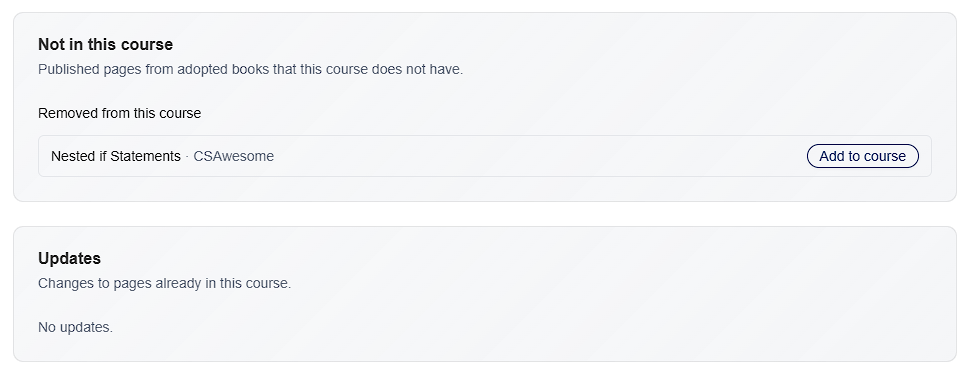
Check Course Settings → Books tab for updates from the adopted books. Pages that are published in the book but not in your course and updates on pages you have copied/forked will show here.