 CuraCourse
At a glance
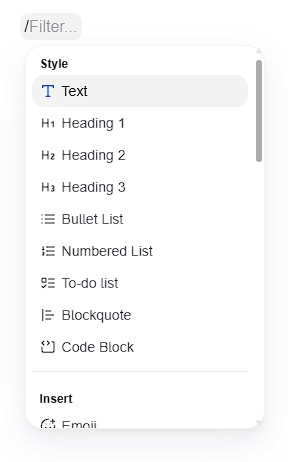
A lesson is a sequence of blocks. Type / in the lesson editor to insert one. Blocks fall into two families:
- Content blocks — text, media, and interactive demos students see. They teach, illustrate, or let students explore. They do not award gradebook points.
- Interactive Activity Blocks — questions and exercises. Students participate or complete them, usually for points.
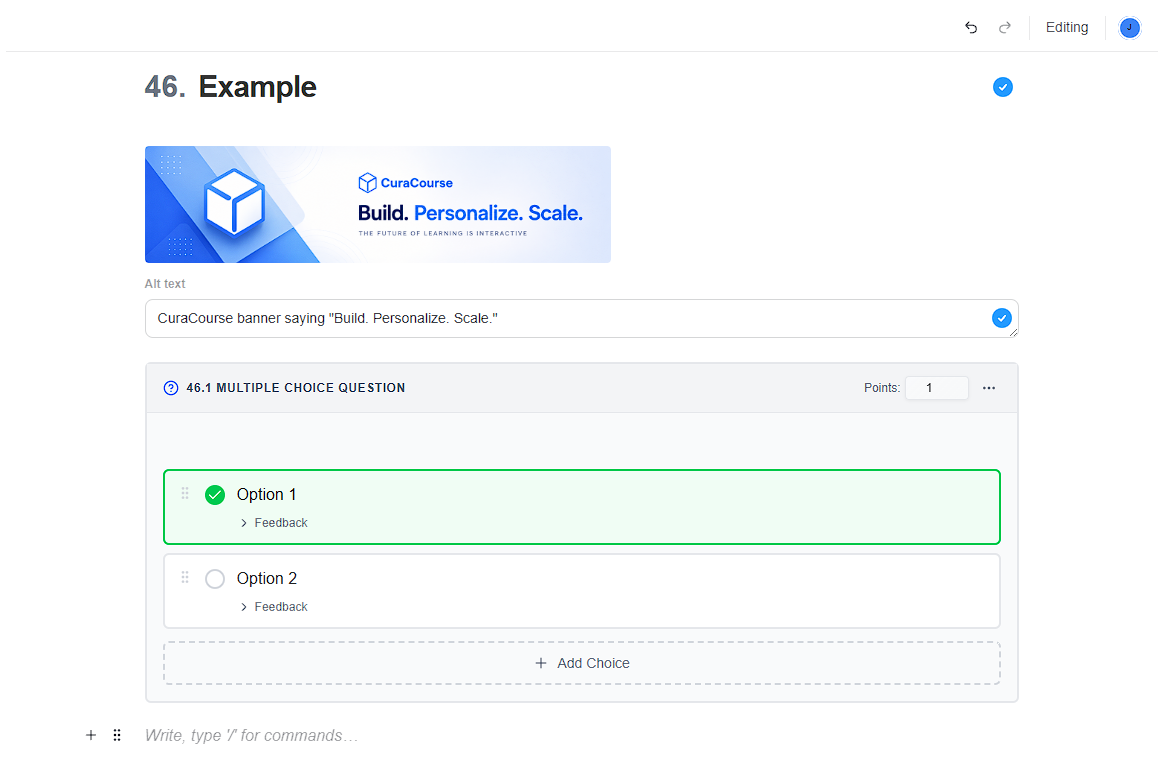
The editor is WYSIWYM (What You See Is What You Mean): you see what each block means (type, points, answers, settings). Students see the same lesson without that instructor chrome.
Prerequisites
- Open a lesson from the course table of contents as an instructor or assistant.
- Click Edit on the lesson header.
Insert a block
- Place the cursor where the block should go.
- Type
/(or click the slash trigger) to open the insert menu. - Pick an item from Style, Insert, Upload, or Interactive Activity Blocks.
- Configure the block in place. Duplicate or delete it from the block
⋯menu.
You can keep typing after a content block. Activity blocks sit as their own units in the lesson (headers, points, and settings stay with the activity).
WYSIWYM (What You See Is What You Mean)
CuraCourse’s lesson editor is not WYSIWYG (“what you see is what you get”). Edit mode is not a pixel-perfect student page.
WYSIWYM means you author the meaning of each block:
- Block type (for example Multiple Choice Question or Image)
- Points, answer keys, and which choices are correct
- Rubrics and model solutions
- Settings such as shuffle, blank types, or sandbox files
Students get the same lesson content with instructor-only data stripped: answer keys, rubrics, model solutions, AI system prompts, graph solutions, and similar authoring chrome.
To check the student experience, leave Edit, or preview a learner’s live work with Learner List.
Editor view vs student view
| In Edit (author) | For students (and when you leave Edit) |
|---|---|
Type label, Points input, settings, ⋯ menu | Interaction surface; points display when grades are allowed |
| Answer keys, correct marks, FIB answers, graph solutions | Keys and solutions redacted |
| Rubrics and model solutions | Stripped — students never see them |
| Author order of choices and items | Shuffle / student order when you enabled it |
| AI Chat system prompt, simulated pairs, grading config | Cleared or defaulted |
Common gotchas
- Setting Points to 0 does not turn an activity into a content block. It is still an Interactive Activity Block (useful for ungraded practice).
- Interactive Graph and Python Tutor Embed look interactive, but they are content — they do not award points. Use Graphing Question, Code Editor, or Code Tracing Activity when you want a scored exercise.
- Instant Feedback appears under Interactive Activity Blocks, but it awards no points of its own. It lets students check a bound activity without submitting the lesson.