 CuraCourse
At a glance
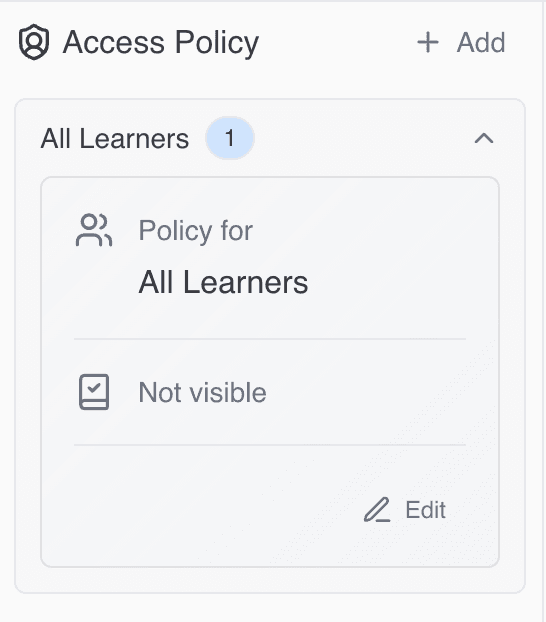
Access Policy controls who can see a lesson, when it unlocks, password locks, and when scores become visible. Policies can target all learners, a cohort, a group, or specific students.
Prerequisites
-
Lesson open in view mode → Access Policy in the right sidebar.
Steps
-
Open Access Policy and click Add (or Edit on an existing card).
-
Set Policy will affect to All Learners, Cohort, Group, or Specific Students, then pick the target when required.
-
Configure:
- Visible at — Schedule when the lesson becomes visible; clear to leave Not visible.
- Locked — When on, set optional Password (Generate available), Unlock at, and Relock at.
- Show scores at — When learners may see grades for this policy target.
-
Click Create or Save.
-
Add additional policies for different cohorts or students; reorder cohort-specific policies if the list allows drag-order.
The All Learners policy cannot be deleted; you can edit it.
Common gotchas
- Not visible means learners don’t see the lesson in the outline until Visible at is in the past (or you clear scheduling appropriately).
- Group policies require groups on that lesson (enable group work and an assignment group first).
- Due date, late submission, and time-limit fields may appear on stored policies even when not shown in the current form—check the policy card summary.