 CuraCourse
When to duplicate
Duplicate a course to teach it again next term, run a second section with its own roster, or try changes without touching the class you're teaching now. The copy is a separate course: changes to one never affect the other.
Who can duplicate
You need to be an instructor in the course. Assistants can't duplicate it. You also need to be able to create courses in the course's organization. If you can't, ask an organization owner or admin to check your membership.
Duplicate a course
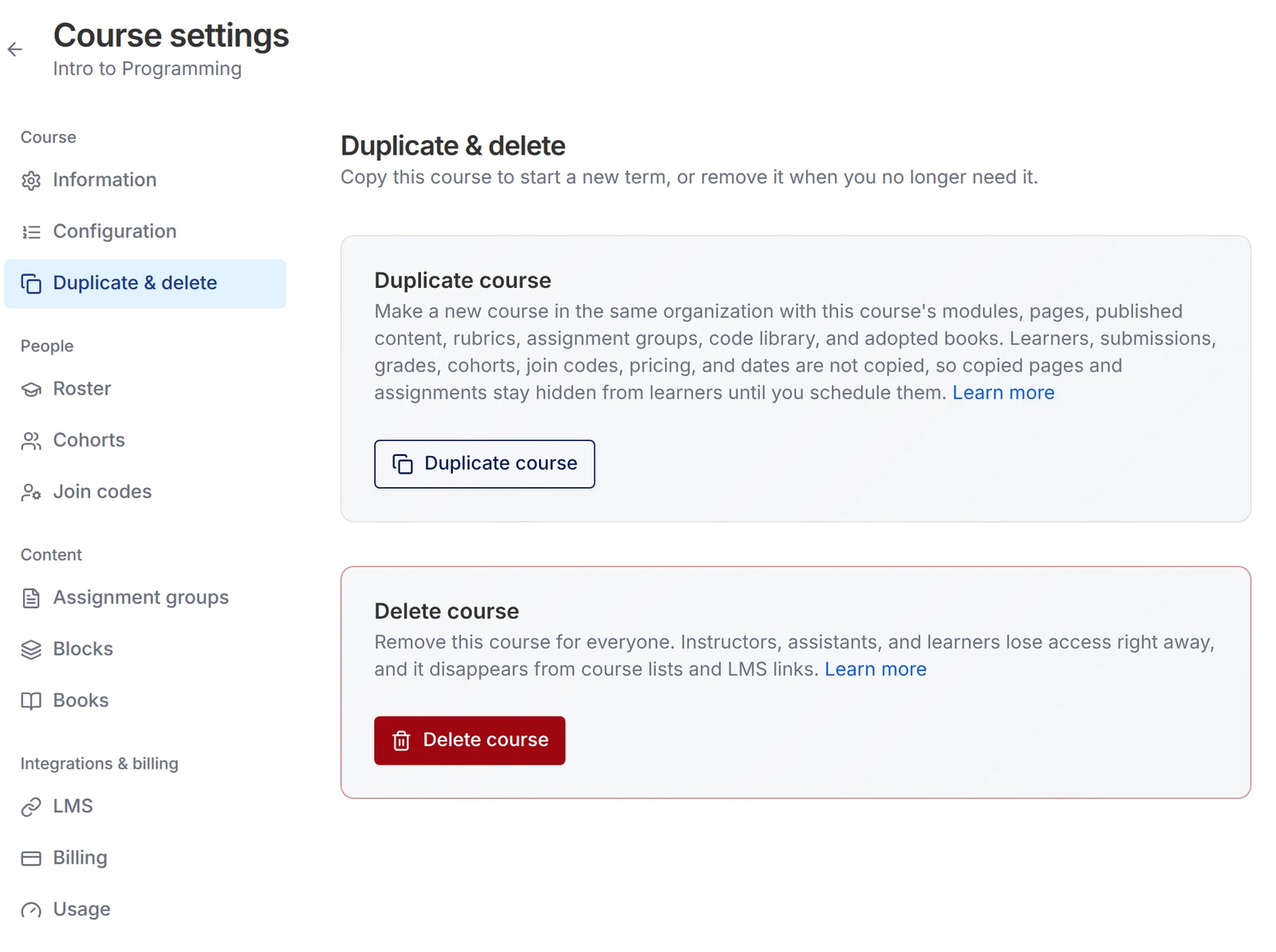
- Open the course and choose Settings.
- In the sidebar, under Course, choose Duplicate & delete.
- Under Duplicate course, choose Duplicate course.
- Enter a title for the new course. It starts as the current title followed by (Copy).
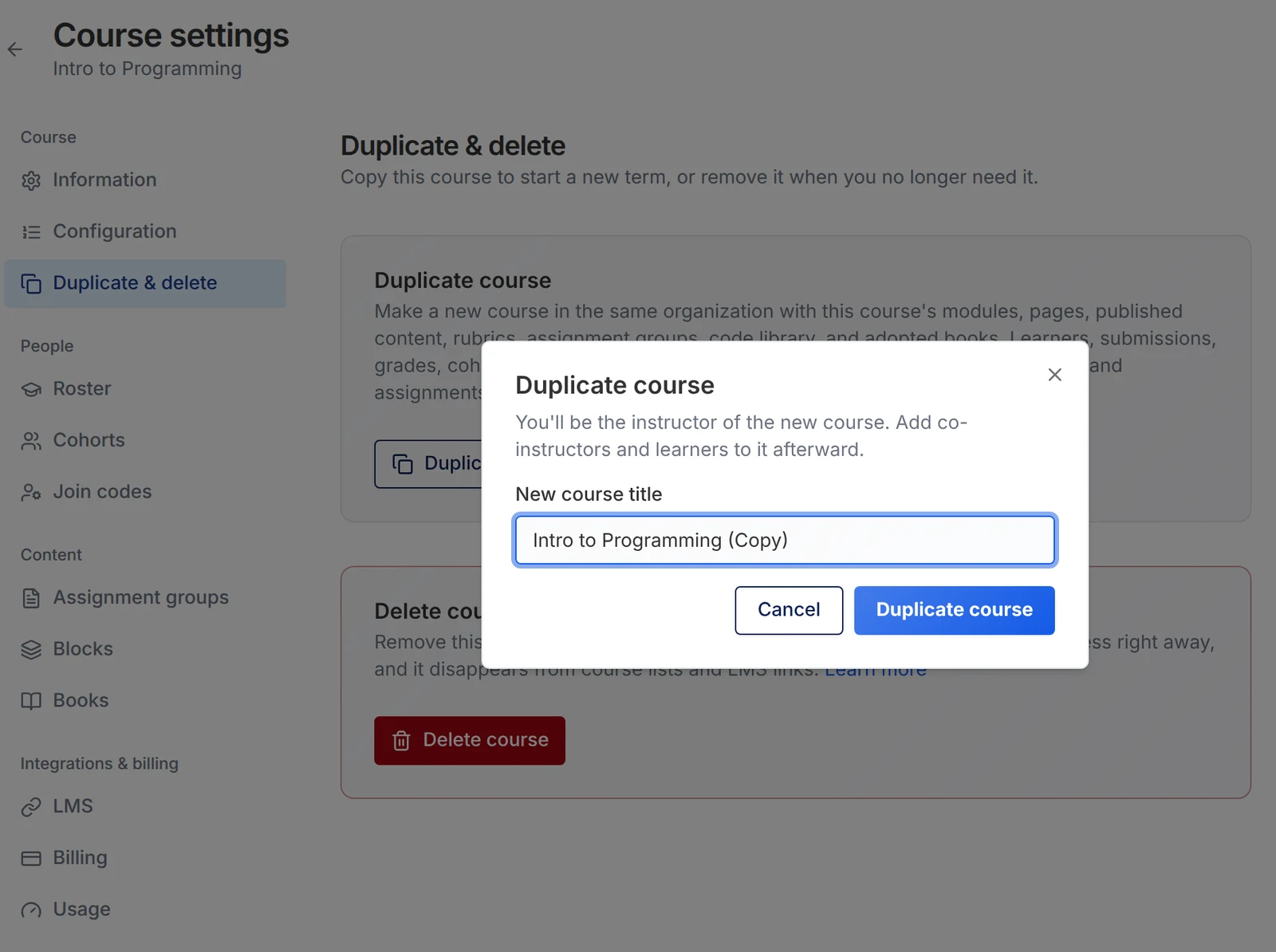
- Choose Duplicate course. When the copy is ready, CuraCourse opens it.
Large courses can take a little while to copy. Keep the window open until the new course opens.
What gets copied
- Modules, lessons, assessments, and other pages, in the same order and numbering style
- Each page's content (its latest published version, if it has one), with activity blocks and rubrics
- Assignments and assignment groups
- The shared code library from Blocks
- Adopted books, so lessons from them stay linked
- Course description, image, instructor names, subjects, and course code
What doesn't get copied
- Learners, assistants, and other instructors. You're the only member of the new course.
- Submissions, grades, progress, and feedback
- Cohorts, student groups, and join codes
- Access and score policies that targeted specific cohorts or learners. Each page goes back to the default policy.
- Assignment due dates and visibility dates. Copied assignments start hidden with no due date.
- Learner pricing and enrollment periods
- LMS links
Before you invite students
Copied pages keep their published content, but they're hidden from learners until you set when each one becomes visible. Copied assignments are hidden too, with no due date. Then:
- Review dates and visibility in each page's access policy, or update policies in bulk.
- Set a due date and visibility date for each assignment. See create an assignment.
- Check Billing in the new course's settings if learners pay for access. See course plans & billing.
- Create join codes for the new class. See invite students.
- Invite co-instructors and assistants with an instructor or assistant join code.