 CuraCourse
Before you start
You need to be a Canvas account administrator and a CuraCourse organization owner or admin. These steps are for Canvas Cloud, where your address ends in instructure.com. If your school hosts its own Canvas, see Moodle and other LMSs.
1. Create an activation code in CuraCourse
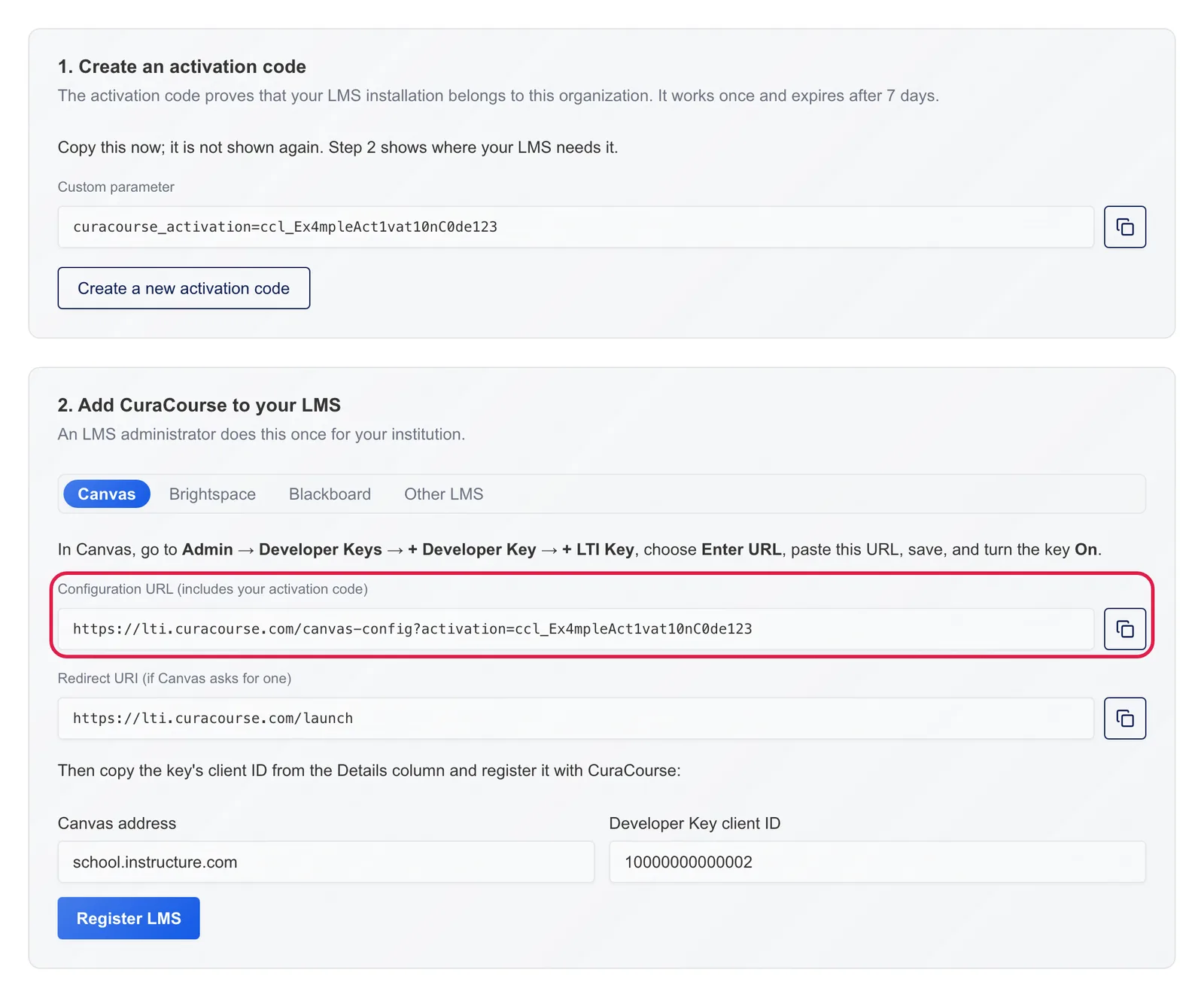
- In CuraCourse, open your organization and choose LMS.
- Choose Create activation code.
- Under Add CuraCourse to your LMS, choose Canvas. Copy the Configuration URL. It already includes your activation code. Keep this page open.
2. Create the developer key in Canvas
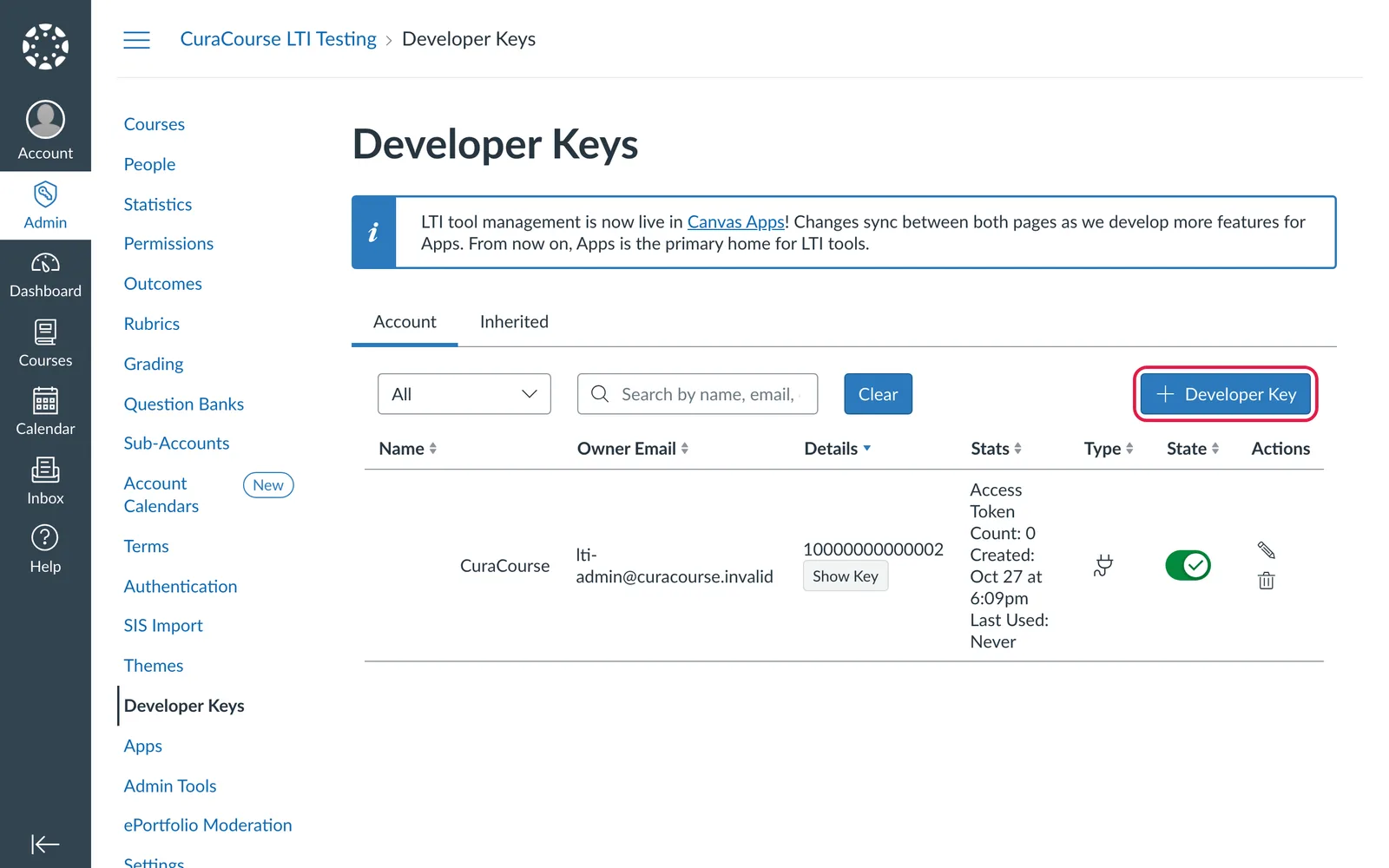
- In Canvas, go to Admin, choose your account, then Developer Keys.
- Choose + Developer Key, then + LTI Key.
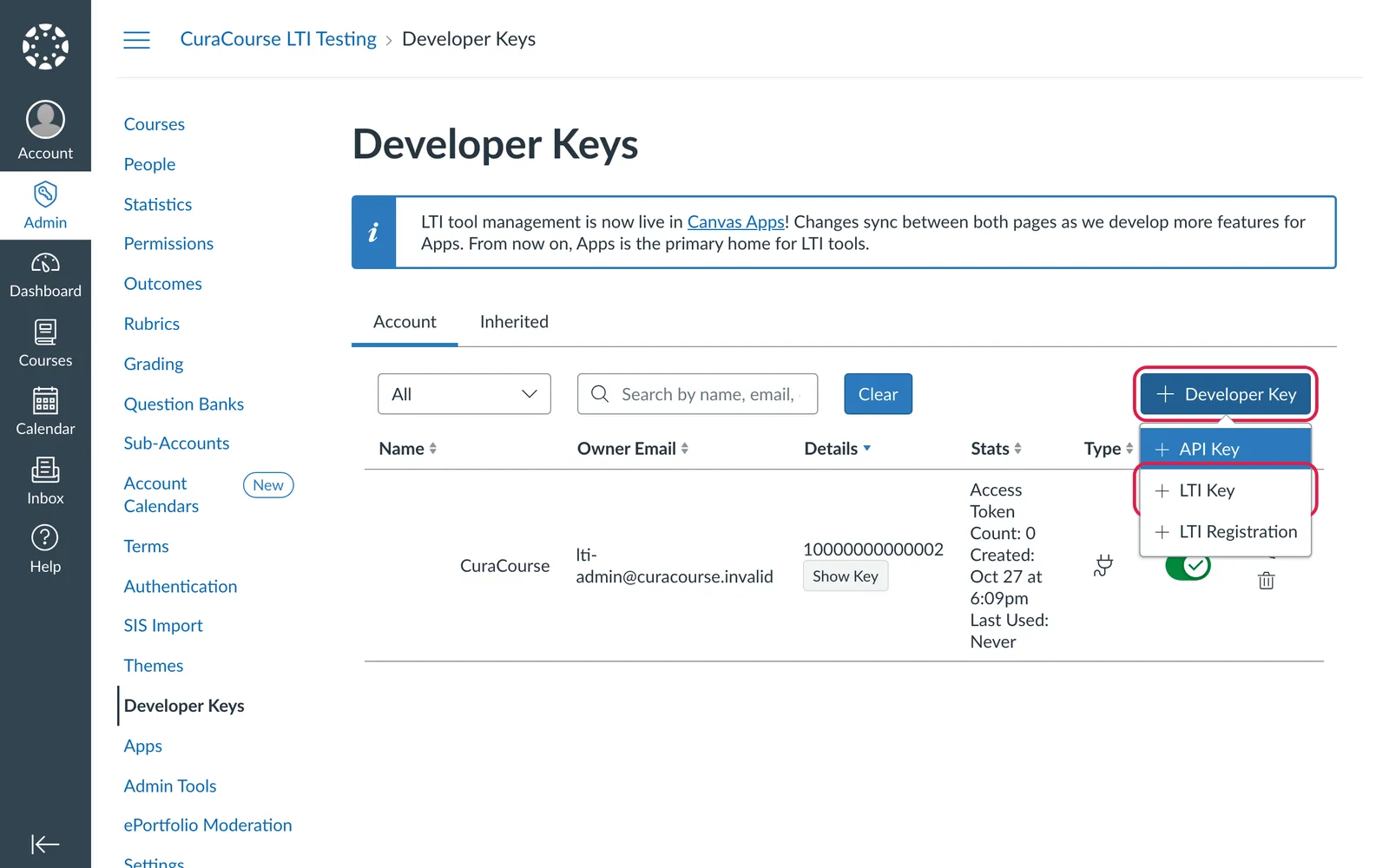
- For Key Name, enter CuraCourse.
- Under Method, choose Enter URL.
- Paste the configuration URL into JSON URL.
- If Canvas asks for Redirect URIs, paste the redirect URI from the CuraCourse page.
- Choose Save.
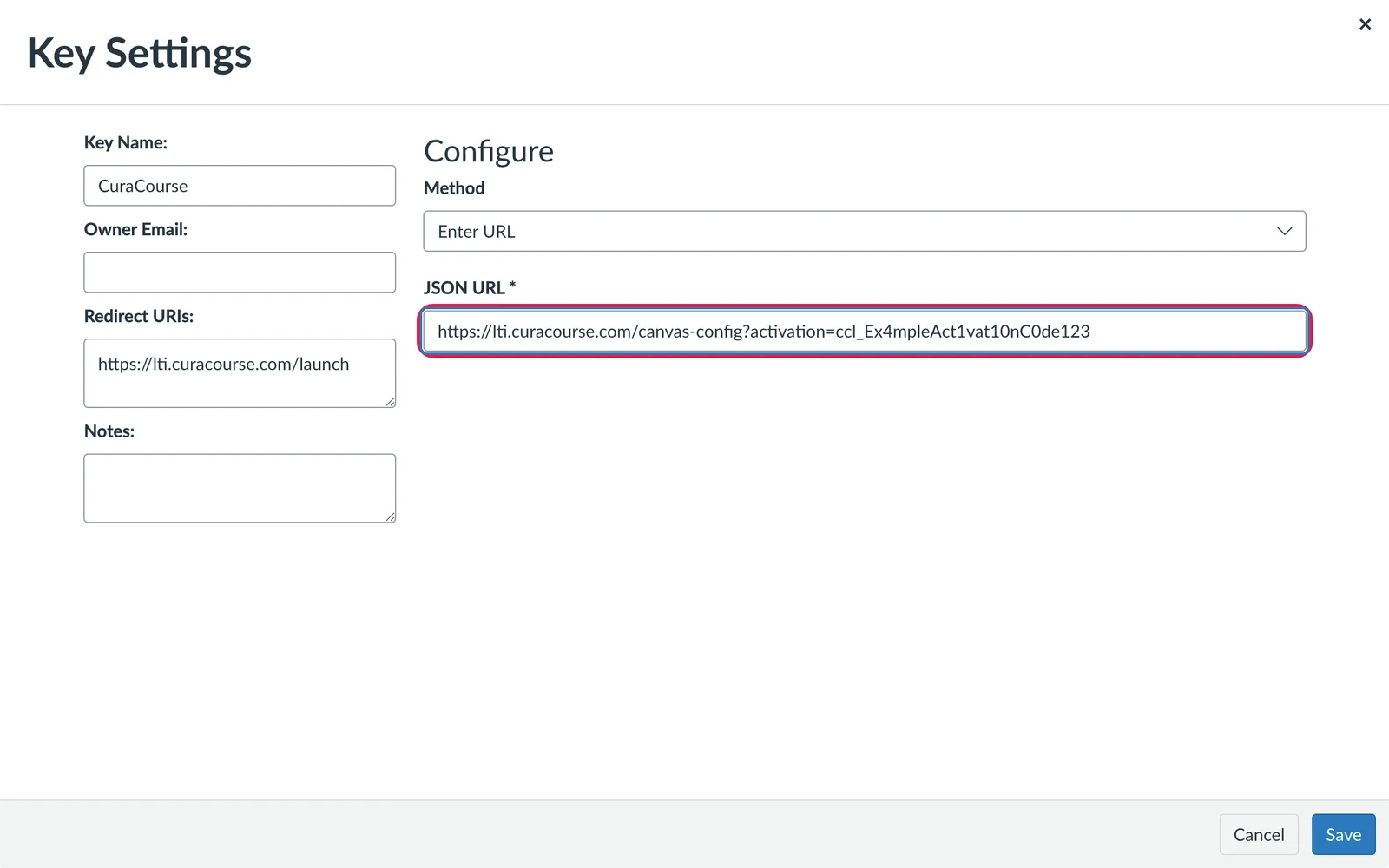
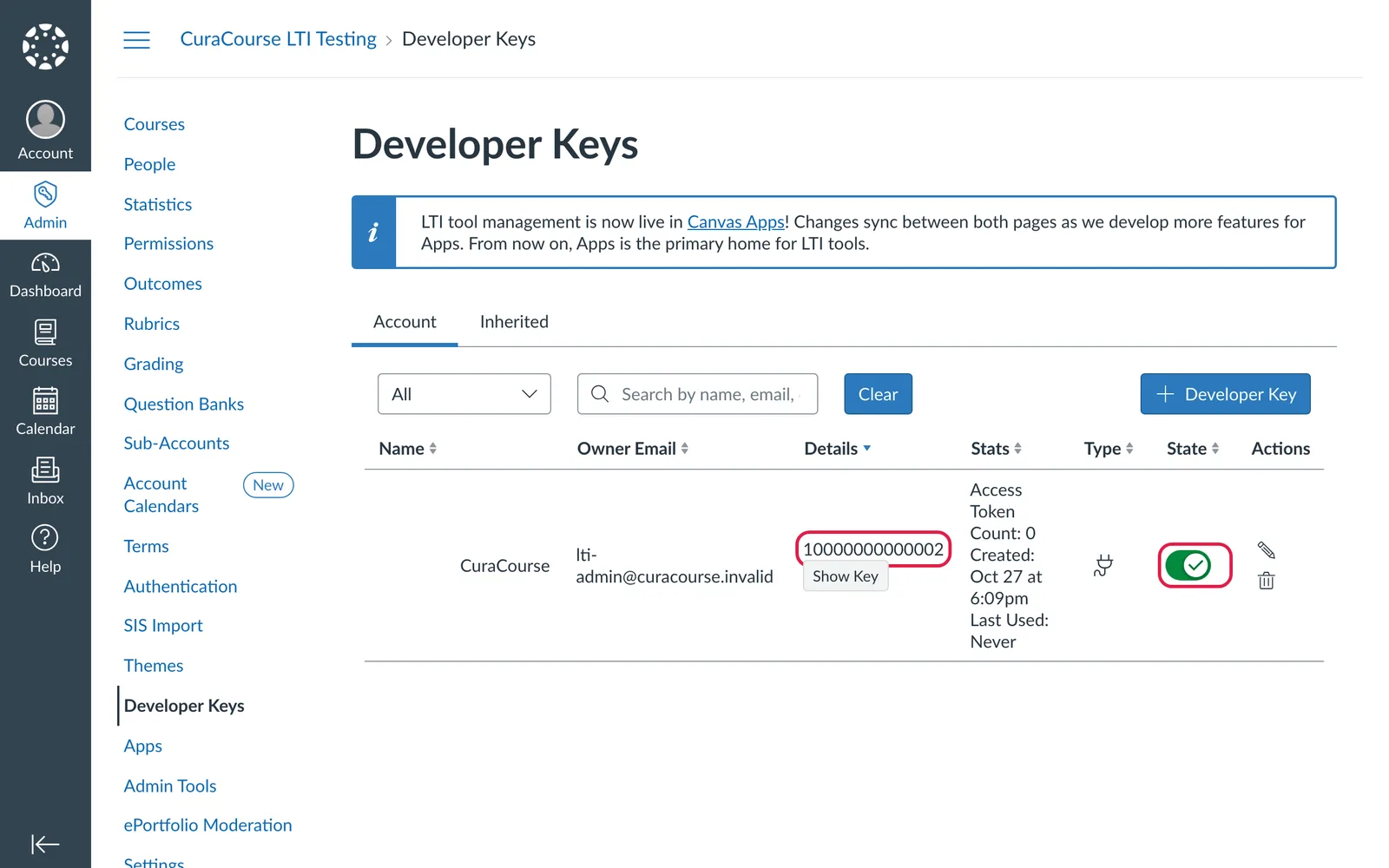
- In the list, switch the key's State to On.
- Copy the number in the Details column. This is the key's client ID.
3. Add the key to CuraCourse
Back on the CuraCourse LMS page, enter your Canvas address (for example school.instructure.com) and the client ID. Choose Register LMS.
4. Install CuraCourse in Canvas
Install it for your whole account, or for one course.
- Open Settings for the account or course, then the Apps tab.
- Choose + App.
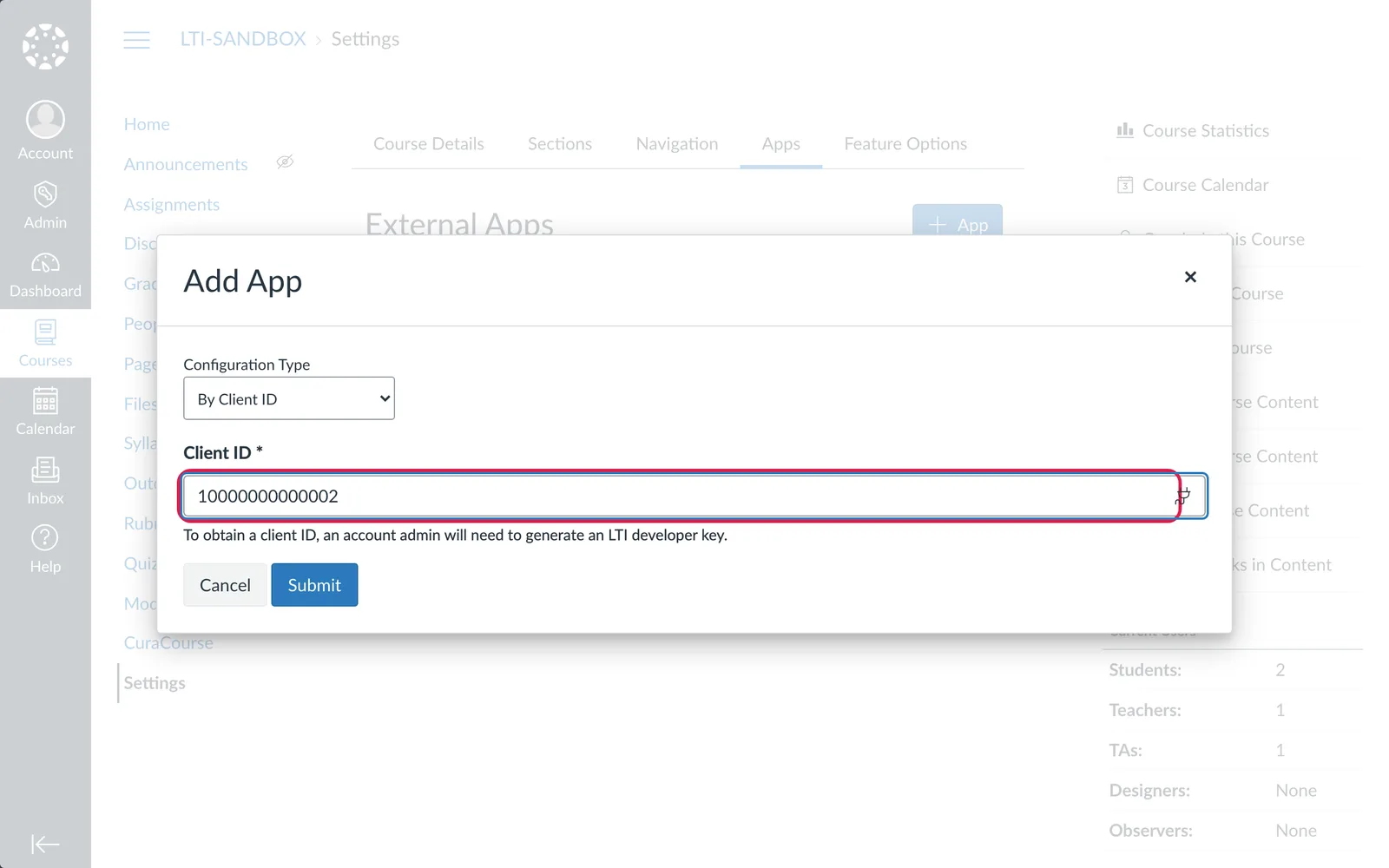
- For Configuration Type, choose By Client ID. Paste the client ID and choose Submit.
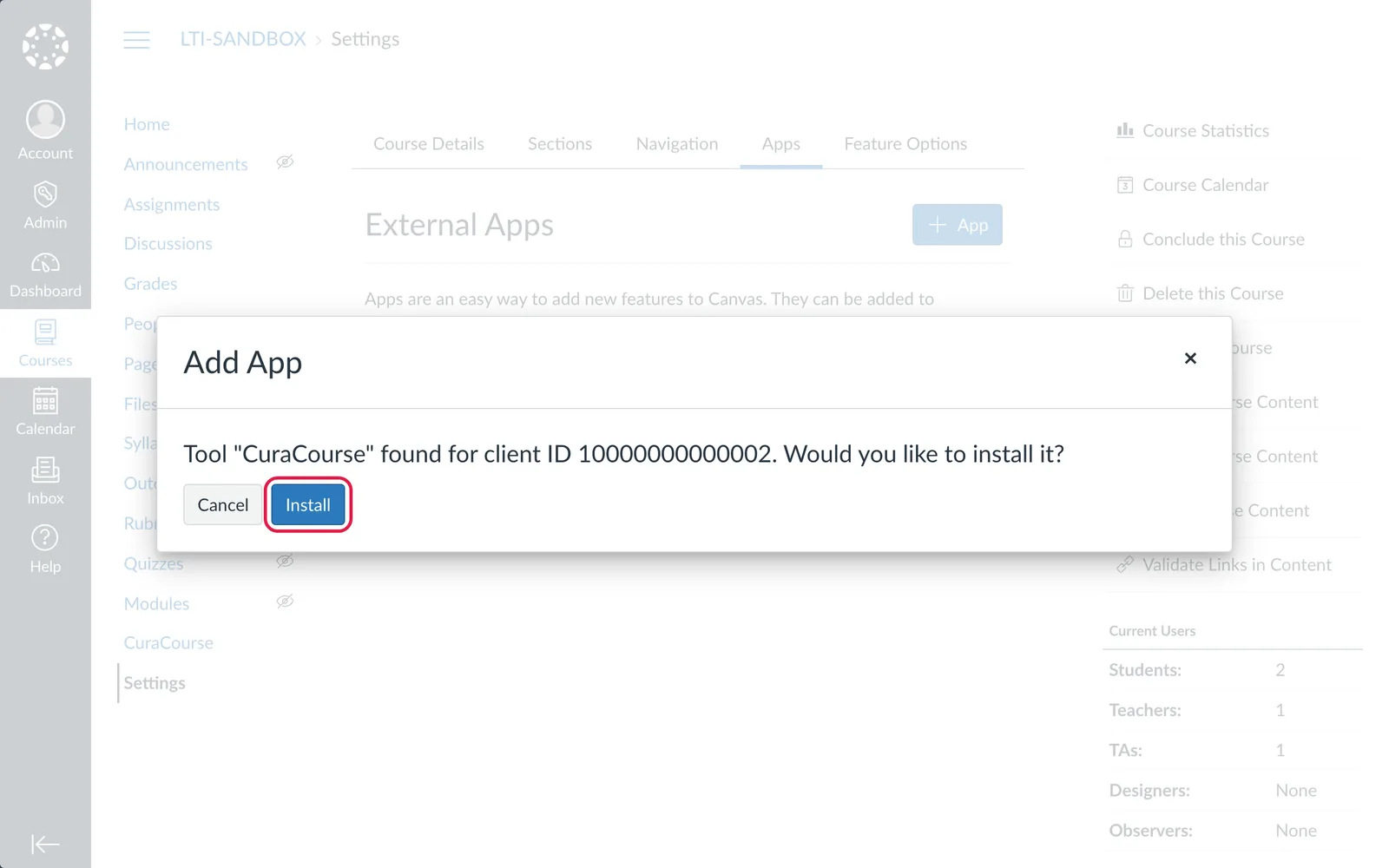
- Canvas shows Tool "CuraCourse" found. Choose Install.
5. Open CuraCourse once
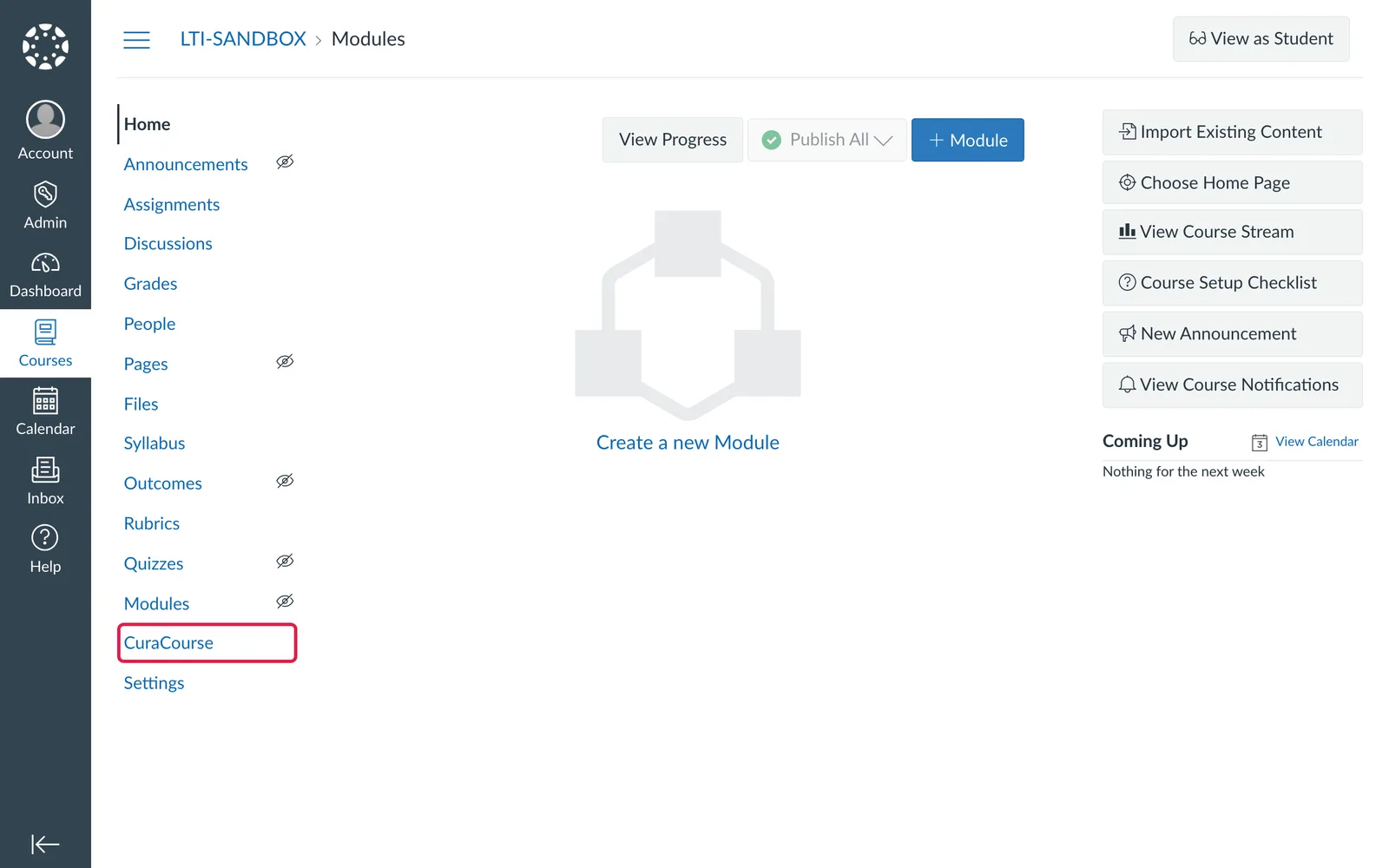
As a teacher or administrator, open a course and choose CuraCourse in the course menu. This connects your Canvas to your CuraCourse organization. The CuraCourse LMS page then shows it as Connected.
The activation code is now used up. You can leave it in the key; it does nothing more.