 CuraCourse
What you get
Once CuraCourse is connected to your learning management system (LMS):
- Students and instructors open CuraCourse from their LMS course and are signed in automatically.
- Each LMS course opens the CuraCourse course its instructor picks.
- Scores go to the LMS gradebook.
- Students added to or removed from the LMS course are added to or removed from the CuraCourse course.
Who does what
| Step | Who |
|---|---|
| Create an activation code in CuraCourse | A CuraCourse organization owner or admin |
| Add CuraCourse to the LMS | An LMS administrator |
| Pick a CuraCourse course for each LMS course | Instructors |
Often one person does the first two.
Before you start
- Your CuraCourse organization must be verified. If Organization → LMS says it is waiting for verification, contact support.
- You need administrator access to your LMS.
Set it up
- In CuraCourse, open your organization, choose LMS, and choose Create activation code. The code tells CuraCourse that your LMS belongs to your organization. It works once and expires after 7 days.
- Add CuraCourse to your LMS with the activation code. Follow the guide for your LMS:
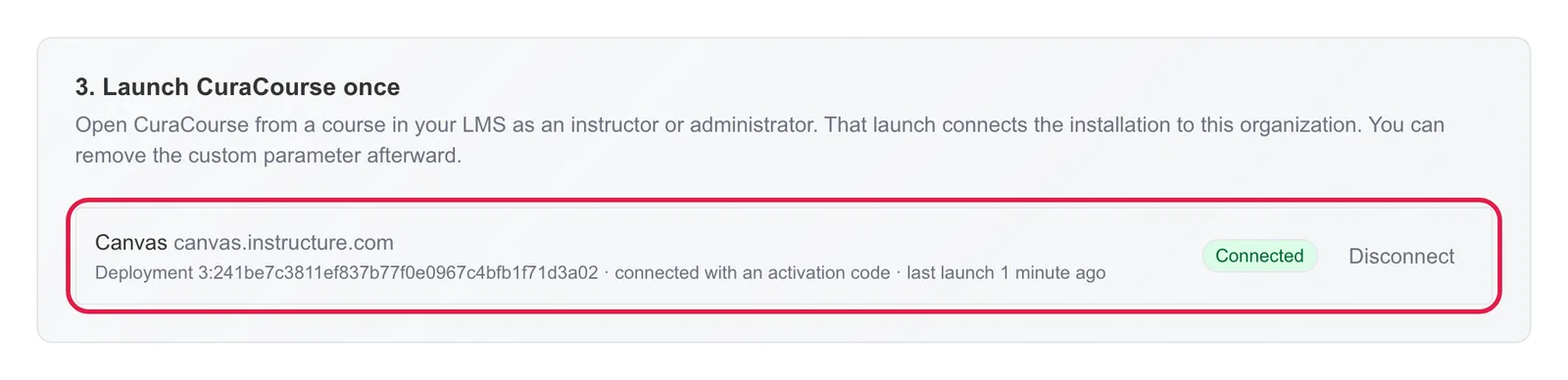
- Open CuraCourse once from a course in your LMS, as an instructor or administrator. Your LMS then shows as Connected under Organization → LMS.
Next, instructors pick their courses.
Disconnecting
Under Organization → LMS, choose Disconnect next to your LMS. CuraCourse stops opening from it right away. To reconnect it, contact support.