CuraCourse
Pick a course
The first time you open CuraCourse from an LMS course as its instructor, CuraCourse asks which of your courses to open. You can also pick an assignment whose grade goes to that link. After that, the LMS course opens your CuraCourse course directly, for you and your students.
You can only pick courses from the organization your LMS is connected to.
Add a graded assignment
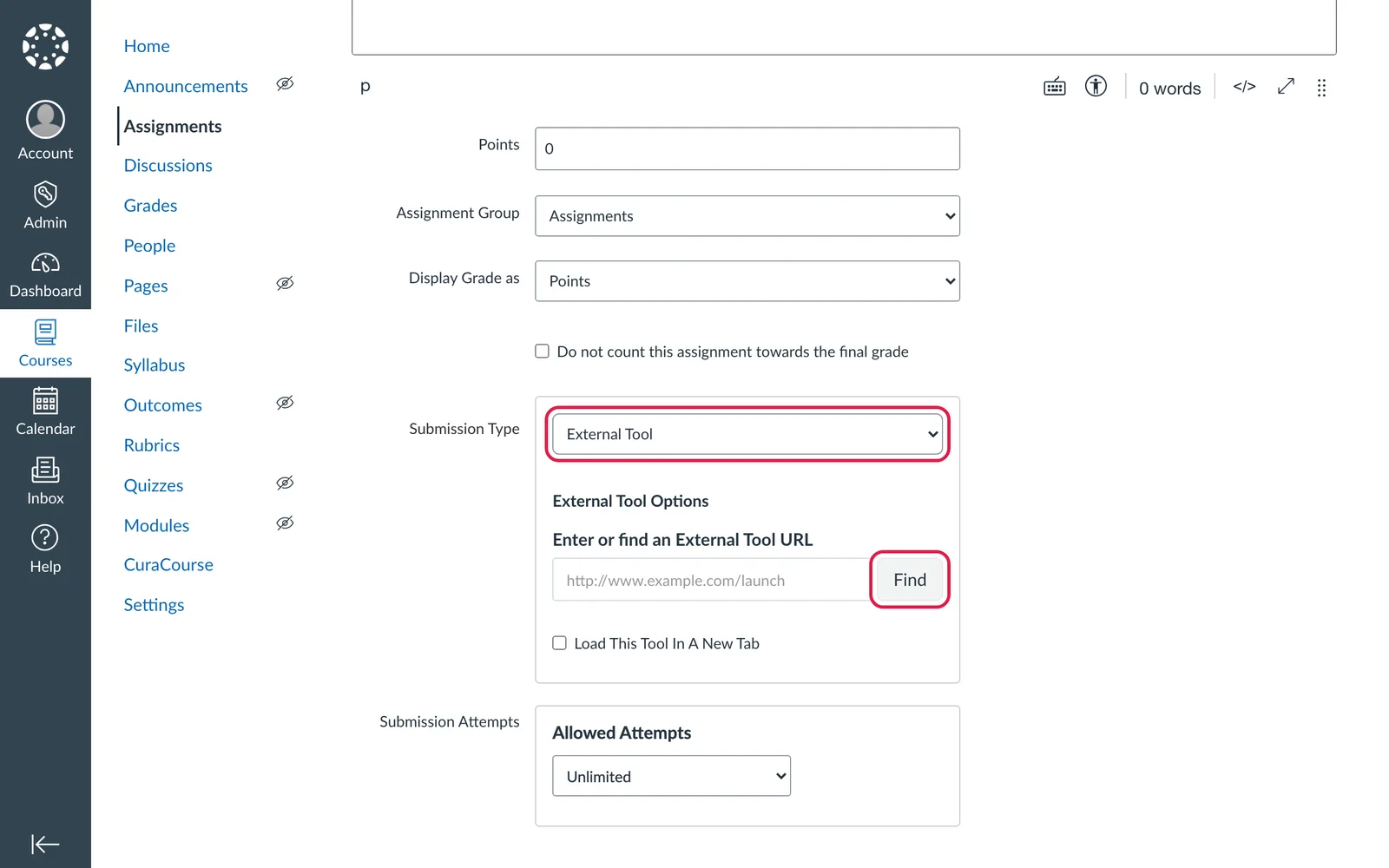
To send a CuraCourse assignment's grade to a specific LMS assignment, add it from your LMS's content picker. In Canvas:
- Create an assignment and set Submission Type to External Tool.
- Choose Find.
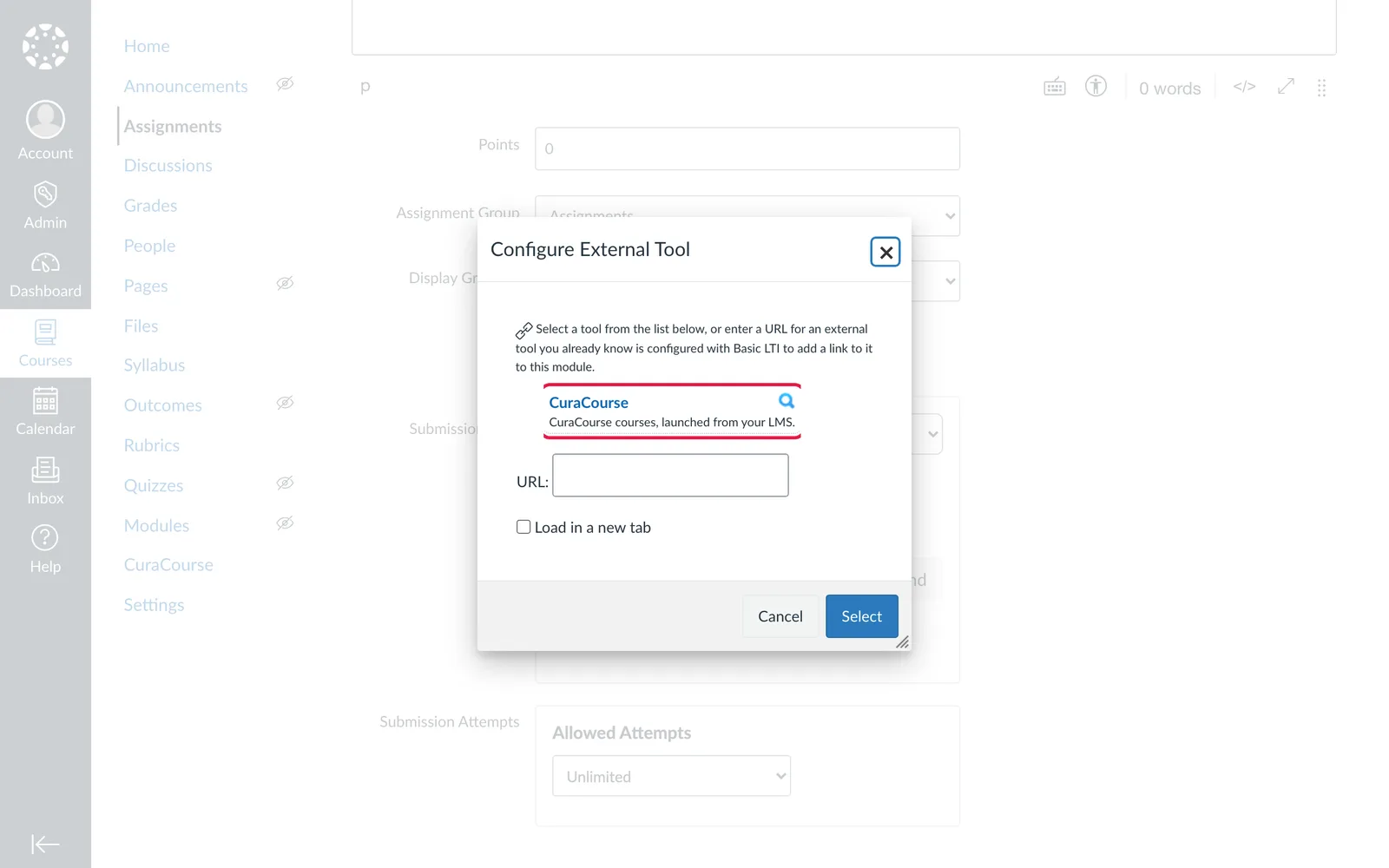
- Choose CuraCourse, then pick the CuraCourse course and assignment.
In Brightspace, use Insert Stuff → CuraCourse. In Blackboard, use the CuraCourse Deep Linking content tool.
Grades
Whenever a student's score changes, CuraCourse sends it to the LMS as a share of the LMS assignment's points. If the LMS is down, CuraCourse keeps trying.
To check grades, open the course in CuraCourse and go to Course settings → LMS. There you can change a link's assignment, Resend grades, retry failed grades, Sync roster, or disconnect the LMS course.
Students
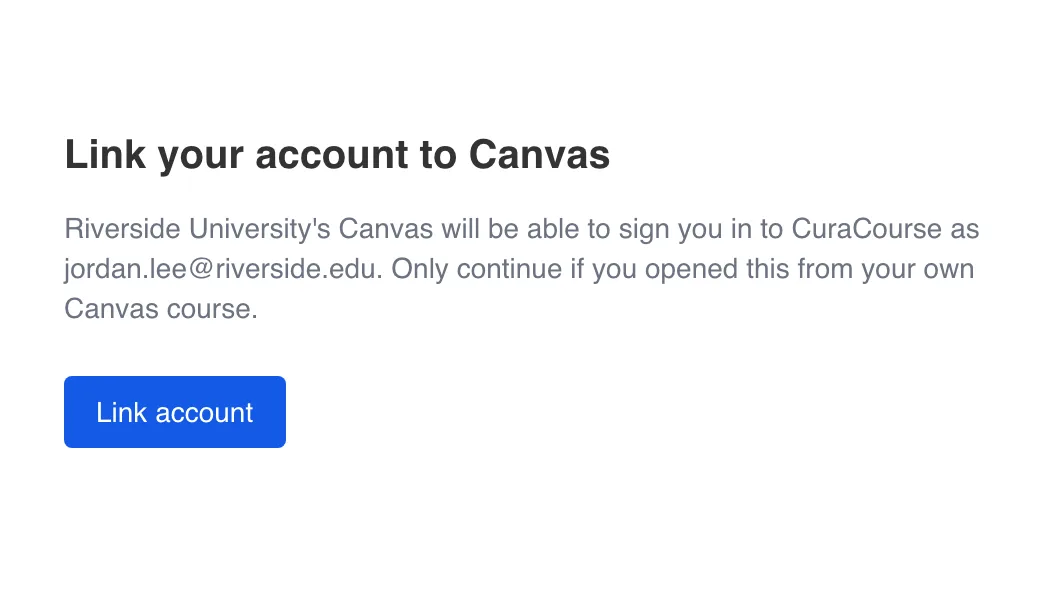
Students open CuraCourse from the LMS and are signed in automatically. If a student already has a CuraCourse account with the same email, CuraCourse asks them to sign in once the way they usually do and choose Link account. After that, the LMS signs them in directly.