 CuraCourse
Who this is for
This guide is for Google Workspace administrators at schools and districts. If students see this when they choose Sign in with Google:
Access blocked: Authorization Error
Error 400: admin_policy_enforced
then your Workspace blocks apps that haven't been approved. Google blocks unapproved apps by default for accounts designated as under 18, so students usually hit it first. Teachers at the same school may be able to sign in normally.
CuraCourse can't change this setting. Only an administrator for your domain can approve the app.
What CuraCourse accesses
Google sign-in shares only the student's name, email address, and profile photo with CuraCourse. CuraCourse does not access Gmail, Drive, Calendar, Classroom, or any other Google data.
Approve CuraCourse
You need a super admin account, or an admin role with security settings access.
-
Sign in to the Google Admin console.
-
Go to Security → Access and data control → API controls.
-
Choose Manage Third-Party App Access, then Configure new app.
-
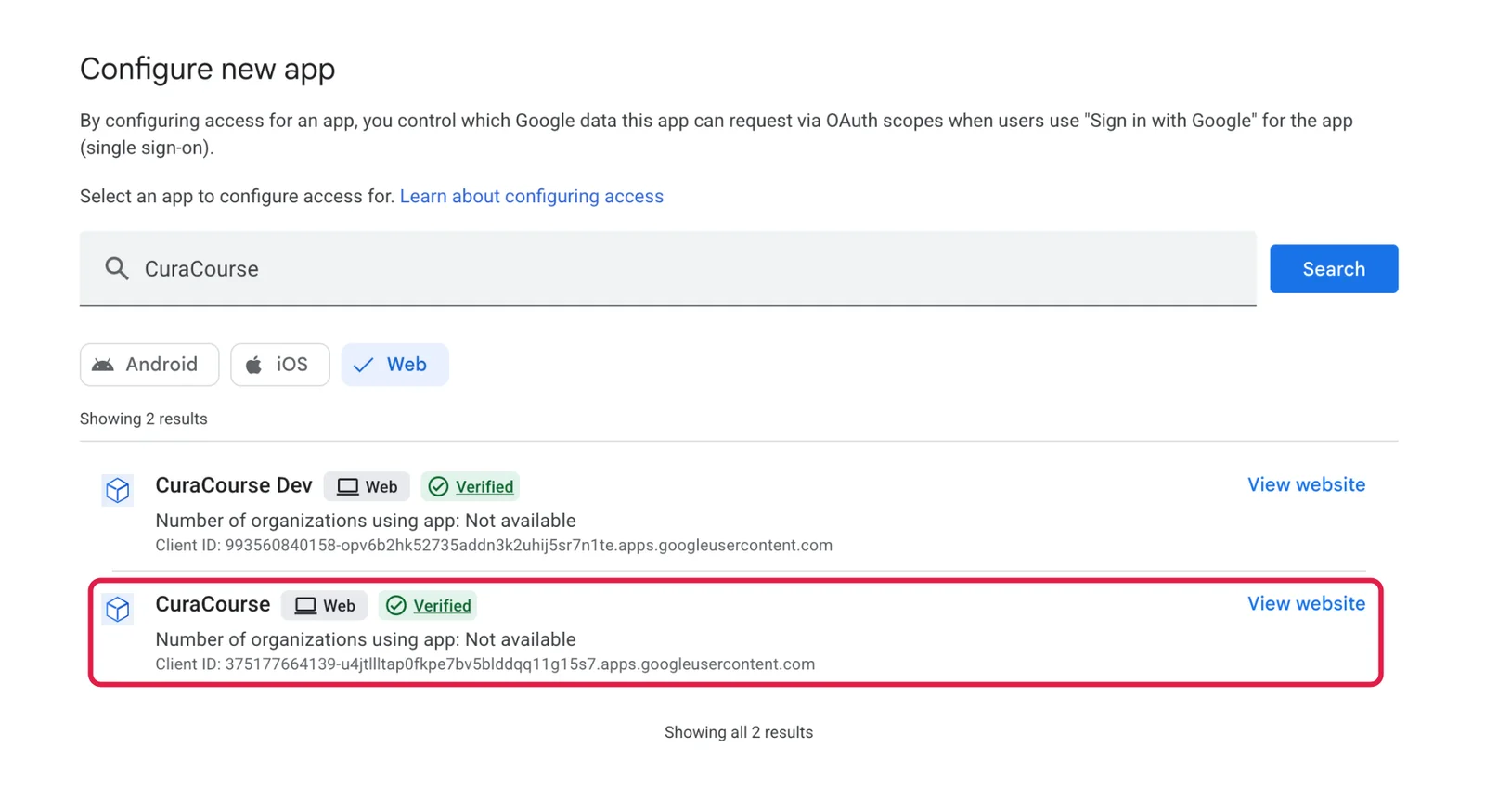
Search for CuraCourse and select the app named CuraCourse. To confirm you have the right one, check that its client ID is:
375177664139-u4jtllltap0fkpe7bv5blddqq11g15s7.apps.googleusercontent.com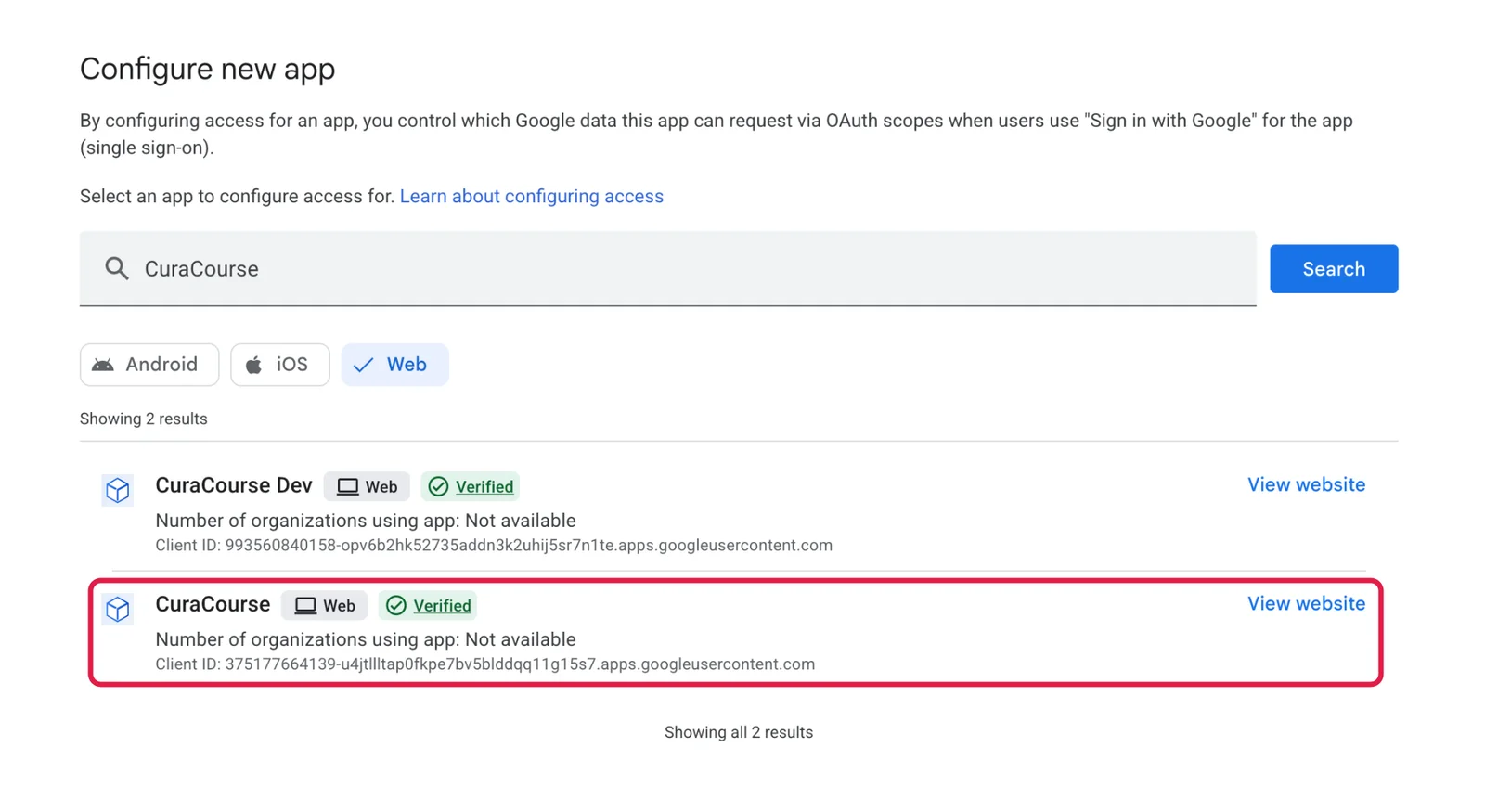
-
Choose Select, then confirm the client ID.
-
Choose the organizational unit for your students, or your whole domain.
-
Choose Trusted. Limited also works, because CuraCourse only uses sign-in.
-
Choose Finish.
The change usually takes effect within minutes, but Google says it can take up to 24 hours. Ask students to close the sign-in window and try again.
Until it's approved
Students can sign in with their school email address and a password or a sign-in link sent by email. They can switch to Google sign-in once it's approved.
Still blocked?
Check that you approved the client ID above for the organizational unit the student belongs to. If they're still blocked, contact support.