 CuraCourse
Your own copy
A Cloud-based Lab puts a code editor next to your instructions. It starts with your instructor's files. This is your own copy, and your changes save automatically.
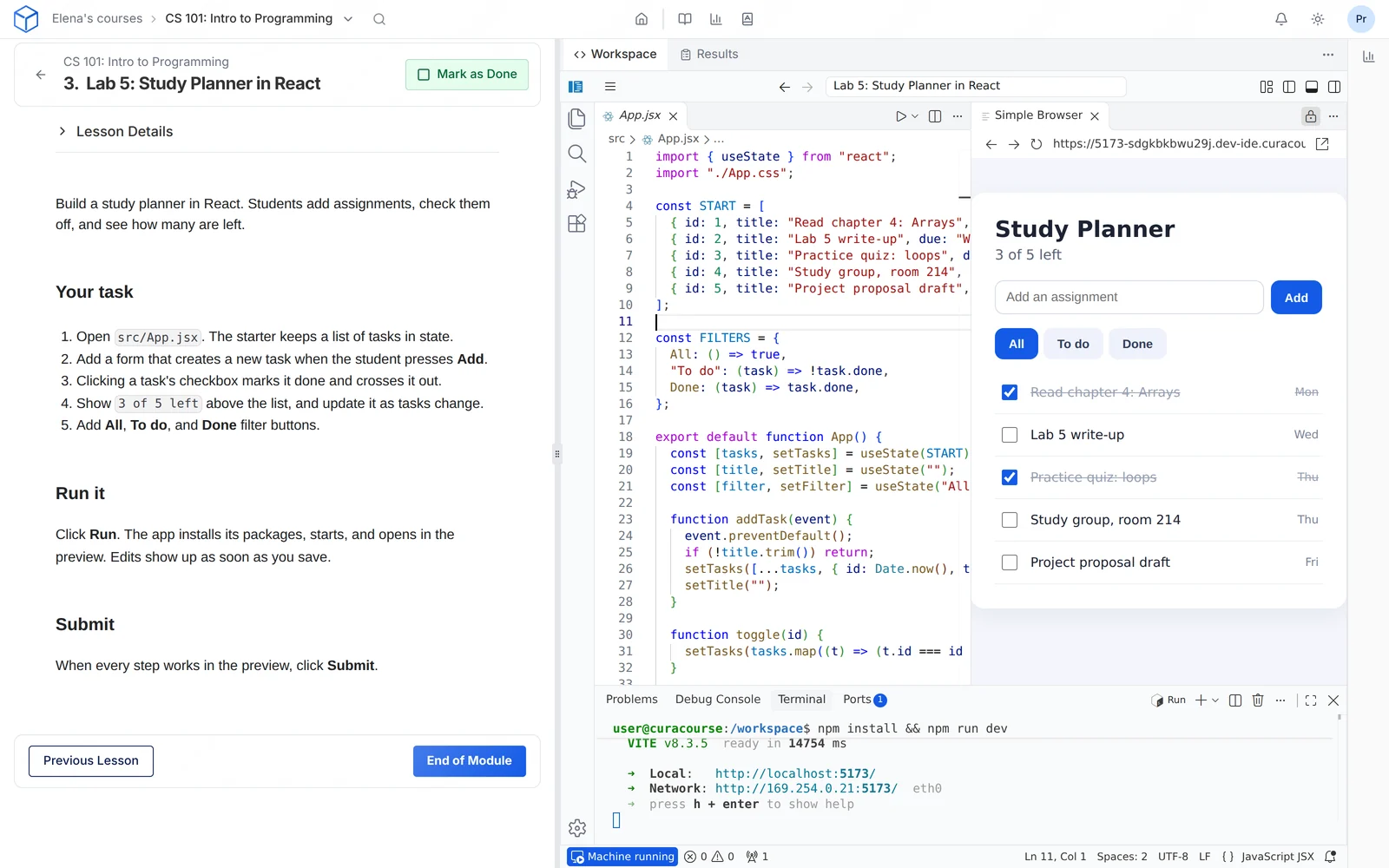
Run your code
Open a file and press Run at the top right of the editor. The first time, this starts a machine: a computer in the cloud that runs your code. It takes a few seconds. Your program's output appears in the panel at the bottom. Pressing Run again stops the last run and starts a new one.
Your instructor may have set Run to always run a particular file.
Start and stop the machine
You can edit files without a machine. To start one yourself, choose Start machine in the bottom-left corner. To stop it, choose Stop machine from the same menu.
The machine stops on its own after about 3 minutes without activity. Typing or clicking in the lab counts, and so does opening a website you made. A program that's still printing output or changing files keeps the machine running for up to 15 minutes after you last typed or clicked. However busy it is, a machine stops 2 hours after it started. If the lab is open, you'll see a warning first. Press Run or open a terminal to start it again.
Use the terminal
The terminal is where you type commands. Open it from the Terminal menu. It opens in your lab's folder.
Extensions
Extensions add features to the editor. The ones you install stay with your account and are added each time you start a machine. Your instructor may have added some for the course.
Stay signed in to tools
When you sign in to a tool in the terminal, such as GitHub, CuraCourse asks whether to remember it. Choose Keep, and you'll stay signed in on new machines in this course. Saved sign-ins are encrypted.
To see or remove them, go to your Profile, then Saved sign-ins and files.
See a website you made
If your program starts a website, choose Open in Browser. Only you and your course staff can see it. To share it with anyone, open the Ports tab at the bottom of the editor and change its visibility to Public.
Start over
Start over gives you a fresh copy of your instructor's files. It deletes your changes, so copy anything you want to keep first.
Submit
Choose Submit at the top of the lesson. Your instructor sees your files as they were when you submitted. See submit your work.
If something goes wrong
- The machine won't start, or your files are missing: choose Contact support in the message, or contact support.
- A page says your website didn't answer: check that your program is still running. The page reloads on its own.