 CuraCourse
Feedback while it still matters.
Students check an answer and get feedback before they submit, so they fix misunderstandings the same night instead of a week later.
What it looks like
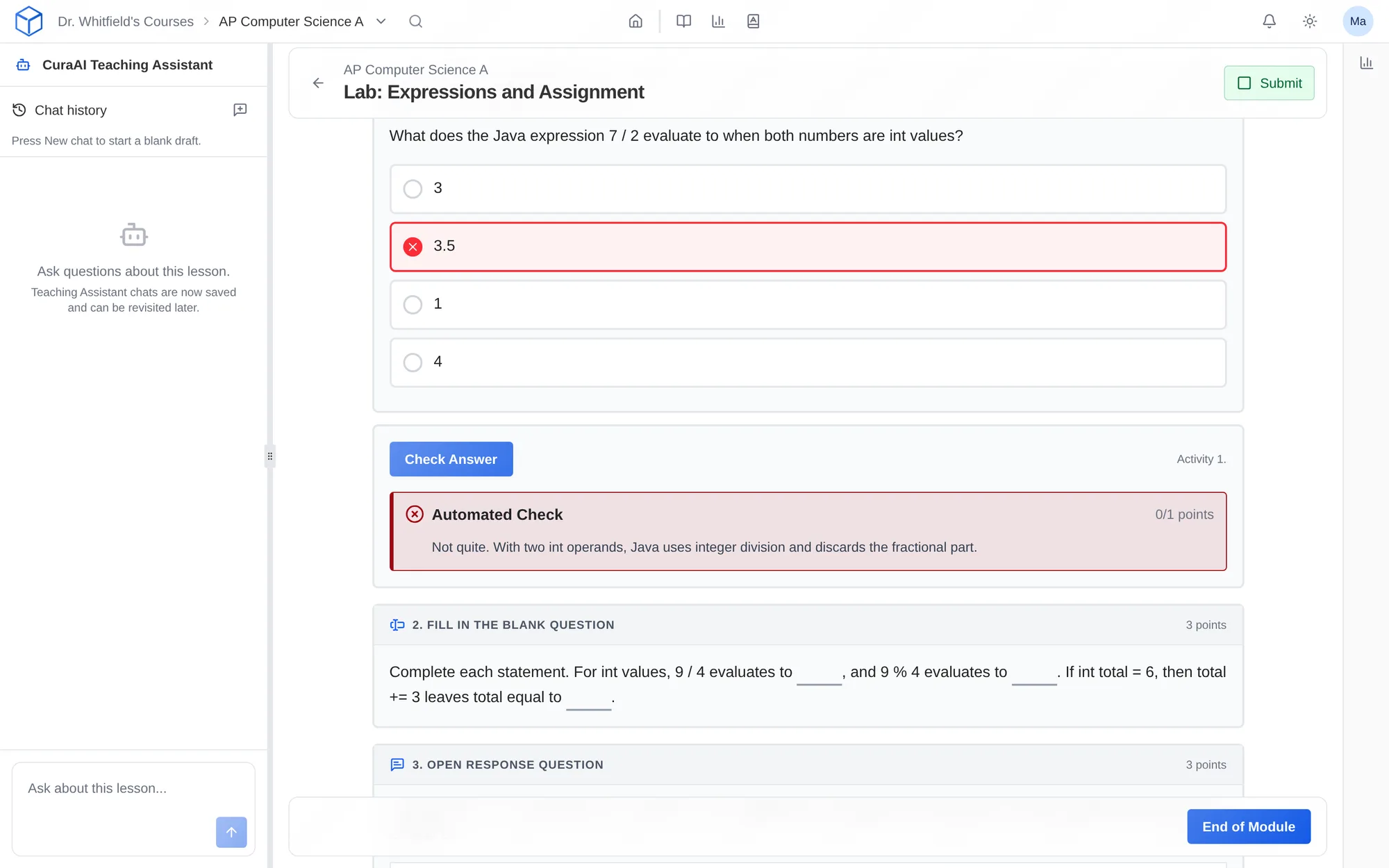
How do I use it?
- Add an Instant Feedback block after any activity.
- Connect it to that activity’s autogradable rubric.
- Students click Check Answer and see what’s right and what’s missing.
- Their final submission is graded as usual.
Features
Based on your rubric
Connect a Check Answer button to an activity’s autogradable rubric, including AI grading criteria you wrote.
Works across activities
Choice, blanks, ordering, code tracing, graphing, and AI Chat have built-in checks. Open response and code can be checked through their rubric.
Practice only
Checks don’t submit the lesson or change the grade. Limit how many checks students get and how often.
Why faculty use it
- Students learn from mistakes before they’re graded.
- Fewer “is this right?” emails.
- Feedback follows your rubric.
In a STEM course
In Calculus I, a student checks a related-rates setup, sees that the units don’t match, and fixes it before submitting.
Questions
Does checking count as submitting?
No. Checks award no points and don’t submit the lesson. Submission is a separate step.
Is it available during exams?
No. Instant feedback is turned off during exams.
Works with other tools
Use these together in the same course.