 CuraCourse
A coding workspace inside your lesson.
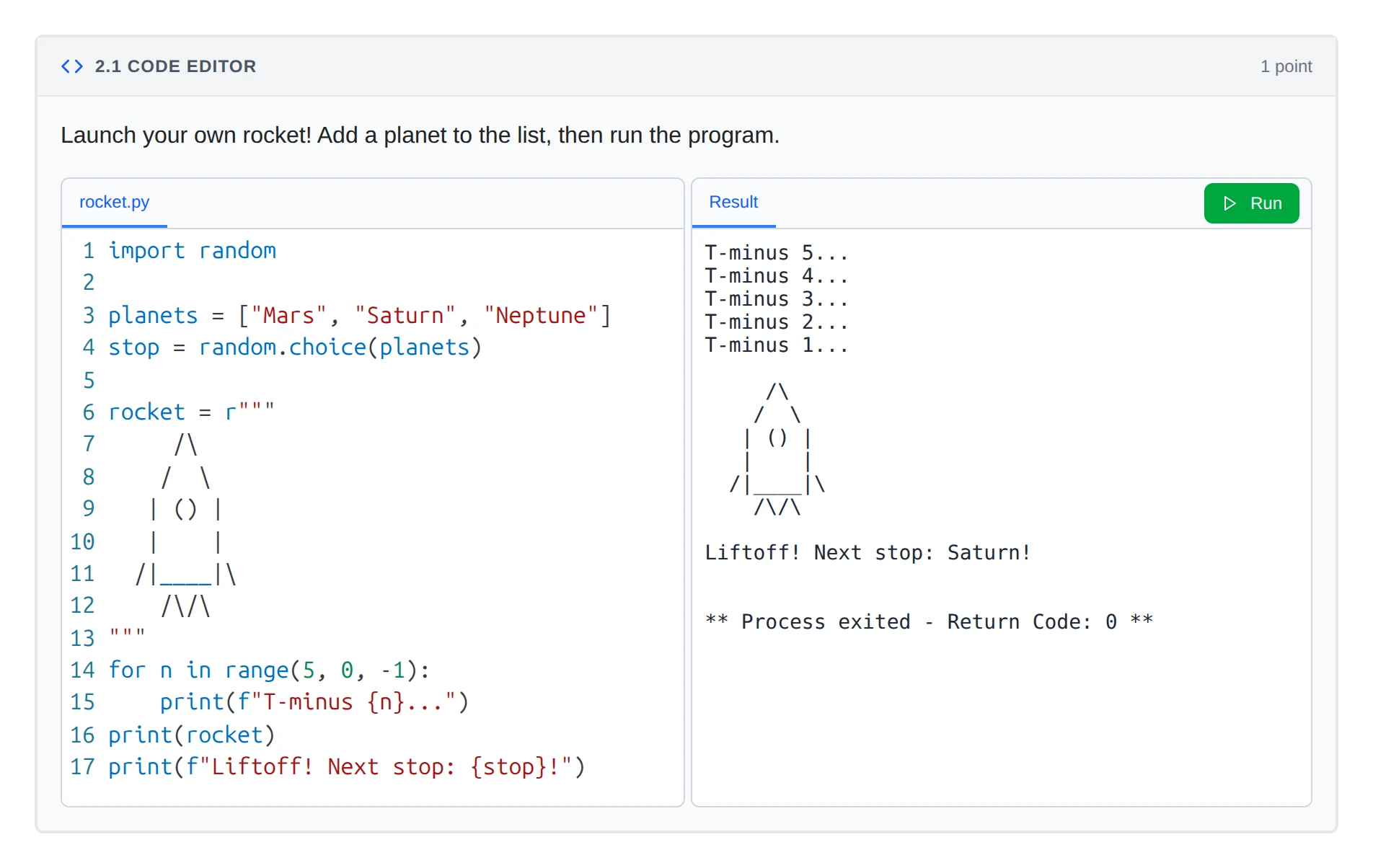
Students write and run code in the lesson with nothing to install. Their programs are graded against the output you expect.
What does it do?
Give students a ready-to-run coding workspace inside the lesson, with your starter files and nothing to install. When they submit, their program runs against your tests and is graded automatically.
Who is it for?
CS teachers
Skip the setup day. Students code in the browser from the first lesson.
STEM professors
Put programming practice right beside the math or the experiment.
Students
Open the starter files, run their code, and submit, all in the course.
What it looks like
How do I use it?
- Add a Code Exercise to your lesson.
- Add starter files and choose how the program runs.
- Add tests with input and expected output, then try it as a student.
Features
Files and run commands
Give students as many starter files as the task needs. Lock the files they shouldn’t change, hide the ones they shouldn’t see, and choose how the program runs.
Output tests
Give each program an input and compare its output to yours by exact match, pattern, or partial match. You decide whether case and spacing matter.
Points and editor rules
Give each test its own points, and turn off pasting when you want students to type their own code.
Questions
Can I provide files students cannot edit?
Yes. Make files read-only or hidden, and share common files across every exercise in a course.
How does automatic grading work?
Each test runs the student’s program with the input you choose and compares what it prints to the output you expect. Match exactly, by pattern, or partially, and decide whether case and spacing matter.
Works with other tools
Use these together in the same course.